---
title: Automatically Archiving Expired Documents
description: Learn how to automatically archive expired documents to keep your document library clean while keeping older documents accessible when needed.
---
[Skip to content](https://helpcenter.simvia.com/knowledge-base/automatically-archiving-expired-documents#main-content)
English
Show submenu for translations
[](https://helpcenter.simvia.com/knowledge-base?hsLang=en)
Open main navigation
Close main navigation
- English
Show submenu for translations
This is a search field with an auto-suggest feature attached.
- There are no suggestions because the search field is empty.
1. [Help Center](https://helpcenter.simvia.com/knowledge-base?hsLang=en)
2. [Supply Chain Approval (SCA)](https://helpcenter.simvia.com/knowledge-base/supply-chain-approval-sca?hsLang=en)
3. [Documents](https://helpcenter.simvia.com/knowledge-base/supply-chain-approval-sca?hsLang=en#documents)
# Automatically Archiving Expired Documents
Automatically archiving expired documents helps keep your document library clean and relevant. By using the document archiving settings, you can ensure that outdated documents no longer clutter your active views while still remaining accessible when needed.
#### Managing archiving settings
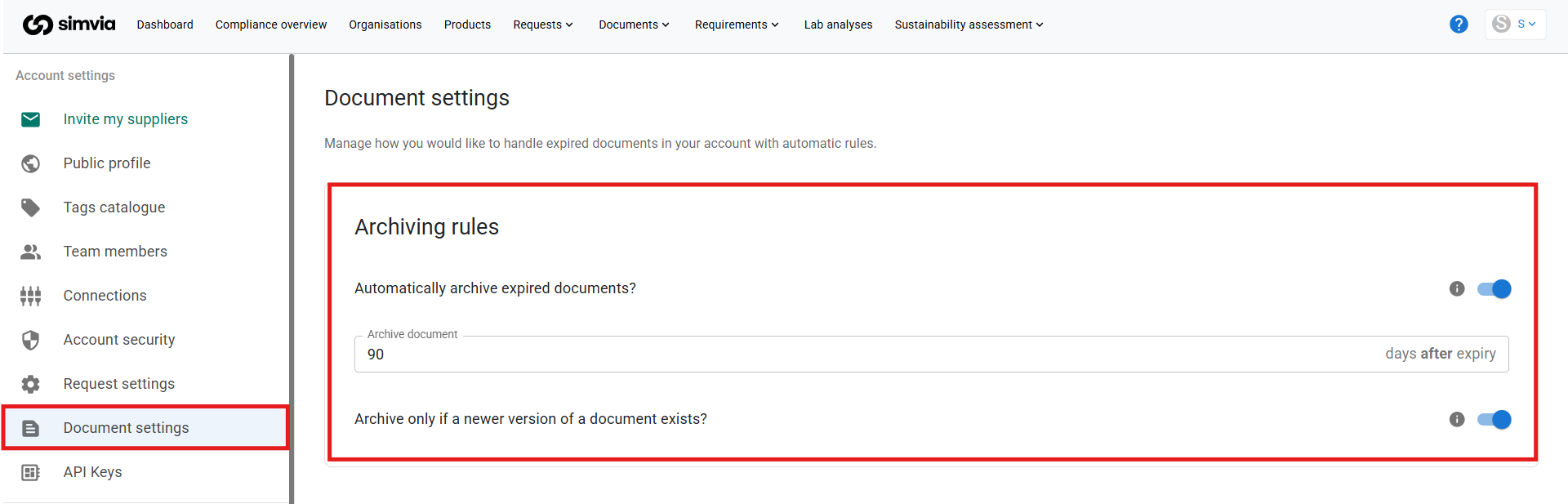
You can manage automatic archiving from your **Account settings** under **Document settings**.
Here, you can configure how expired documents are handled.
### Automatic archiving
When enabled, documents are automatically archived as soon as they expire. This is useful if you want your active document list to always contain only valid documents.
### Conditional archiving
When enabled, expired documents are archived **only if a newer version is available**. This option ensures that you never lose visibility of a document unless it has been replaced.
These settings help you control how strict your document housekeeping should be.
### Important to know
Archiving is not applied instantly. It runs as a scheduled process once per day.
This means:
- Changes to archiving settings may take up to 24 hours to take effect
- Documents marked for archiving will appear as archived the following day
#### Finding archived documents
Archived documents are hidden by default but remain accessible when needed.
You can access archived documents within the **Organisation documents** view by enabling the option to include archived documents in the document list.
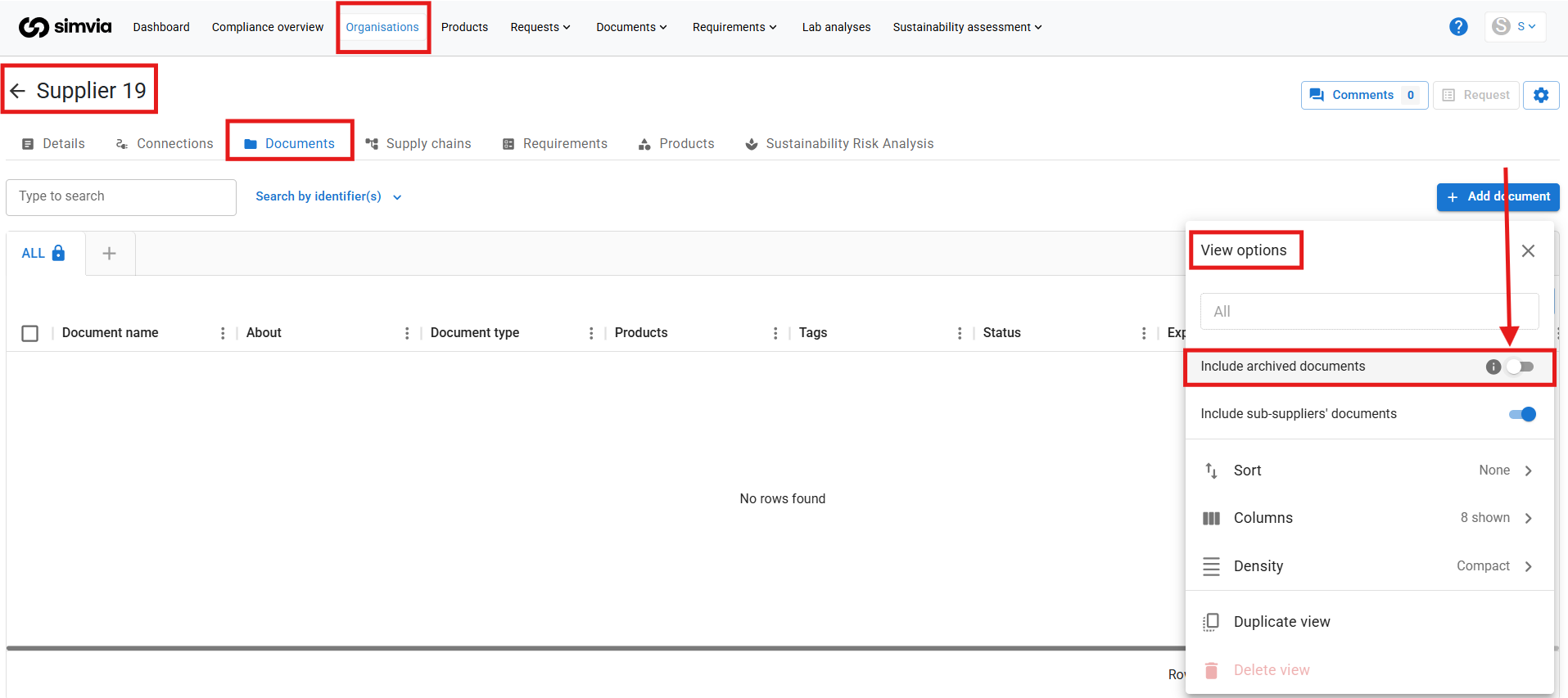
Archived documents are clearly marked, allowing you to distinguish them from active documents.
To save time, you can also create a **custom view** that includes archived documents. This allows you to review both active and archived documents without changing the view settings each time.
#### Using nested sorting with archived documents
Nested sorting helps you organise large document lists by grouping and ordering documents using multiple criteria.
You can access nested sorting from the **View options** under **Sort**.
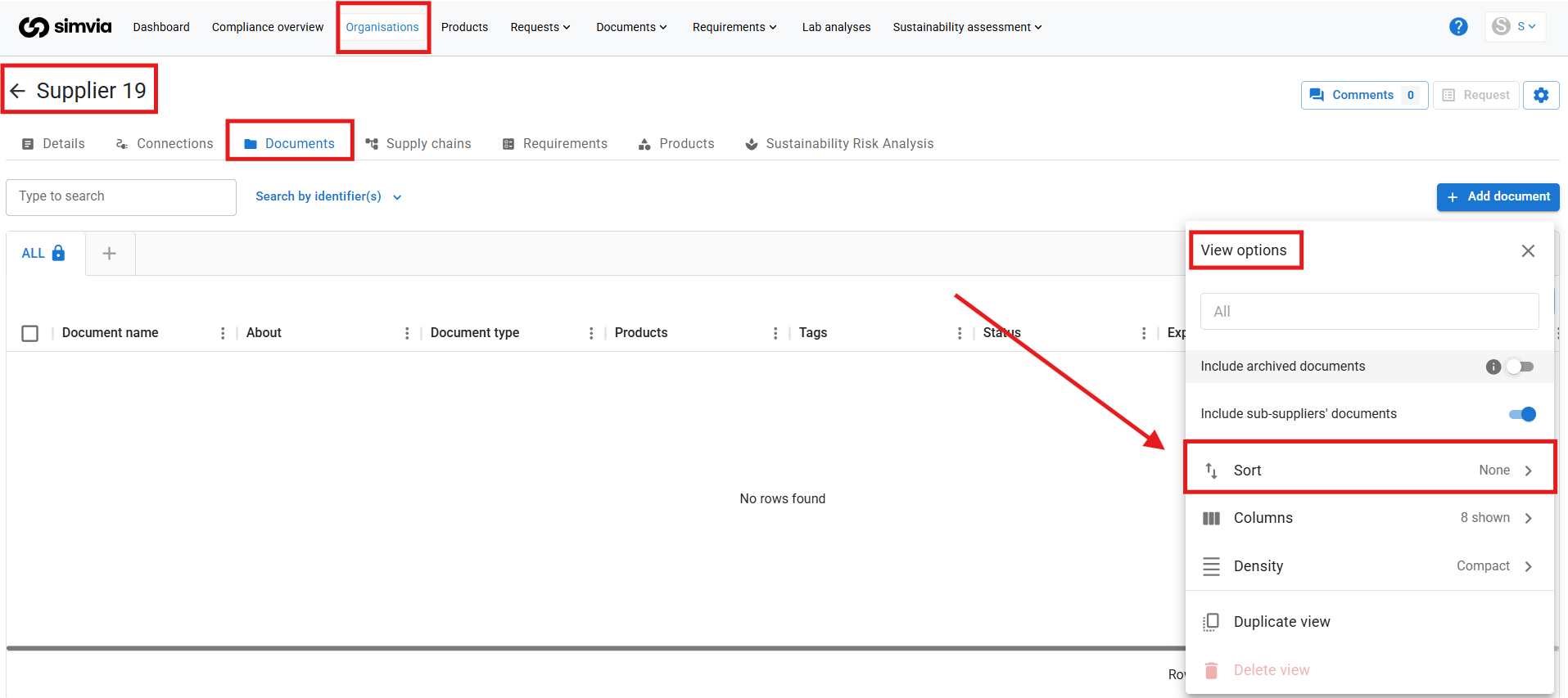
With nested sorting, you can:
- Sort by more than one column
- Choose ascending or descending order per column
- Stack sorting rules to create structured, tree-like views
For example, you can first sort by document type and then by status. This groups documents by type and shows their current state within each group.
Nested sorting makes it easier to review archived and active documents together without clutter.
#### Keeping your document library clean
Using automatic archiving together with custom views and nested sorting allows you to:
- Focus on valid, active documents
- Keep expired documents available without distraction
- Maintain a clear and scalable document structure over time
This approach reduces manual clean-up and supports long-term document management.
- [Getting Started](https://helpcenter.simvia.com/knowledge-base/getting-started?hsLang=en#main-content)
- [About Simvia](https://helpcenter.simvia.com/knowledge-base/getting-started?hsLang=en#about-simvia)
- [Navigating the Platform](https://helpcenter.simvia.com/knowledge-base/getting-started?hsLang=en#navigating-the-platform)
- [Account & Access](https://helpcenter.simvia.com/knowledge-base/getting-started?hsLang=en#account-access)
- [Supply Chain Approval (SCA)](https://helpcenter.simvia.com/knowledge-base/supply-chain-approval-sca?hsLang=en#main-content)
- [Dashboard](https://helpcenter.simvia.com/knowledge-base/supply-chain-approval-sca?hsLang=en#dashboard)
- [Compliance Overview](https://helpcenter.simvia.com/knowledge-base/supply-chain-approval-sca?hsLang=en#compliance-overview)
- [Organisations](https://helpcenter.simvia.com/knowledge-base/supply-chain-approval-sca?hsLang=en#organisations)
- [Products](https://helpcenter.simvia.com/knowledge-base/supply-chain-approval-sca?hsLang=en#products)
- [Requests](https://helpcenter.simvia.com/knowledge-base/supply-chain-approval-sca?hsLang=en#requests)
- [Documents](https://helpcenter.simvia.com/knowledge-base/supply-chain-approval-sca?hsLang=en#documents)
- [Requirements](https://helpcenter.simvia.com/knowledge-base/supply-chain-approval-sca?hsLang=en#requirements)
- [PPWR](https://helpcenter.simvia.com/knowledge-base/ppwr?hsLang=en)
- [Sustainability Risk Assessment (SRA)](https://helpcenter.simvia.com/knowledge-base/sustainability-risk-assessment-sra?hsLang=en)
- [Connections](https://helpcenter.simvia.com/knowledge-base/connections?hsLang=en#main-content)
- [Certification Databases](https://helpcenter.simvia.com/knowledge-base/connections?hsLang=en#certification-databases)
- [Laboratory Integrations](https://helpcenter.simvia.com/knowledge-base/connections?hsLang=en#laboratory-integrations)
- [Updates](https://helpcenter.simvia.com/knowledge-base/updates?hsLang=en#main-content)
- [Release Notes 2026](https://helpcenter.simvia.com/knowledge-base/updates?hsLang=en#release-notes-2026)
- [Release Notes 2025](https://helpcenter.simvia.com/knowledge-base/updates?hsLang=en#release-notes-2025)
[](https://www.simvia.com/)
Copyright © 2026, Simvia