---
title: Creating and Managing Custom Views in Simvia
description: Learn how to create and manage custom views in Simvia to filter and organise organisations or products using saved views.
---
[Skip to content](https://helpcenter.simvia.com/knowledge-base/creating-and-managing-custom-views-in-simvia#main-content)
English
Show submenu for translations
[](https://helpcenter.simvia.com/knowledge-base?hsLang=en)
Open main navigation
Close main navigation
- English
Show submenu for translations
This is a search field with an auto-suggest feature attached.
- There are no suggestions because the search field is empty.
1. [Help Center](https://helpcenter.simvia.com/knowledge-base?hsLang=en)
2. [Supply Chain Approval (SCA)](https://helpcenter.simvia.com/knowledge-base/supply-chain-approval-sca?hsLang=en)
3. [Organisations](https://helpcenter.simvia.com/knowledge-base/supply-chain-approval-sca?hsLang=en#organisations)
# Creating and Managing Custom Views in Simvia
Custom views help you organise your lists in a way that matches your workflow. By applying filters and saving them as views, you can quickly switch between different filtered lists without having to reapply filters each time.
Custom views can be used on pages such as **Organisations** and **Products**.
Custom views are saved automatically and remain available the next time you log in.
**Important:** Custom views are saved per user. This means that another person accessing the same account with a different email address will need to create their own custom views. Views are not shared across users within the same company account.
---
#### Why use custom views?
Custom views allow you to:
- Group organisations or products based on your own criteria
- Quickly access frequently used filtered lists
- Maintain a clear overview when managing large amounts of data
They are especially useful when working with suppliers, buyers, products, or organisations in different stages or categories.
---
#### Creating a custom view
To create a custom view:
1. Open the **Organisations** or **Products** page from the top menu
2. Click the **plus (+)** icon next to the **All** view
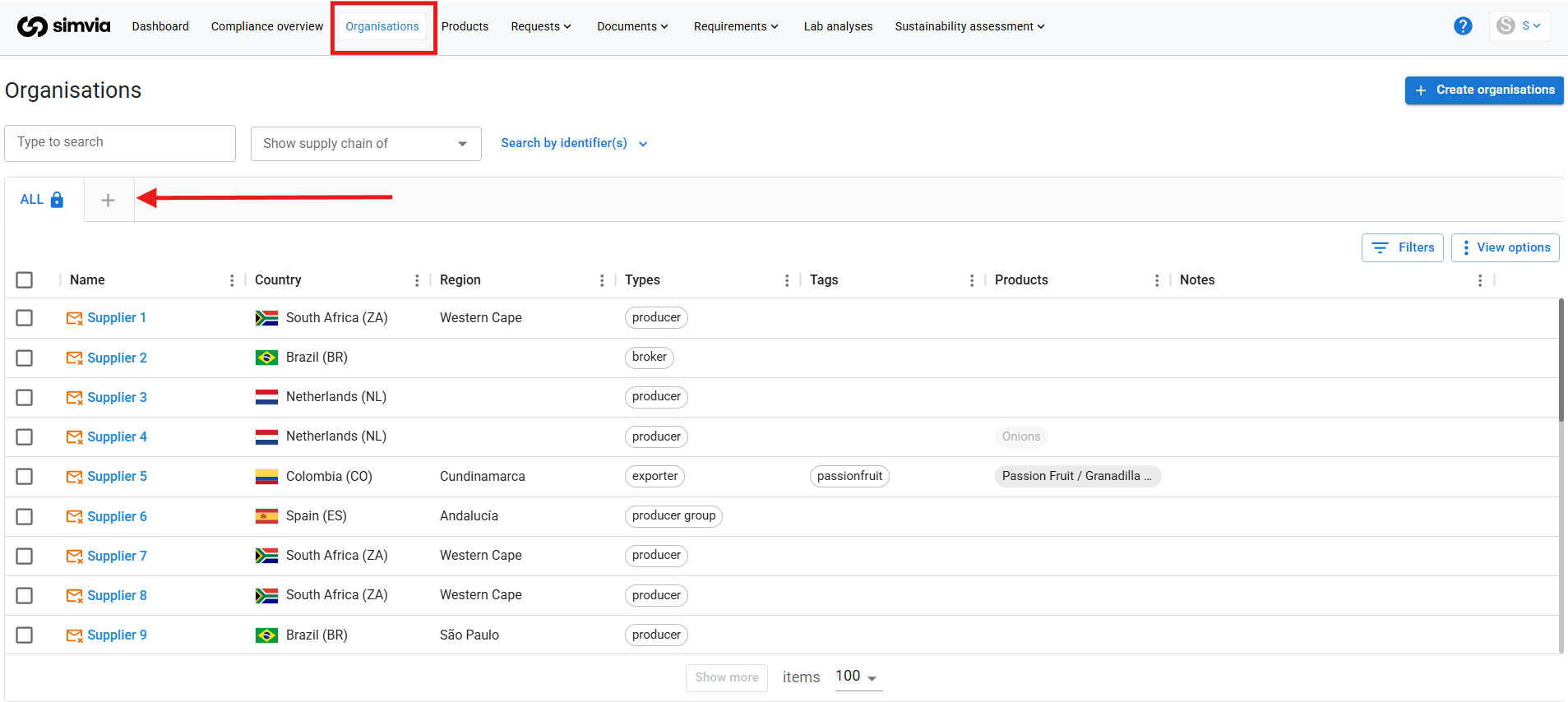
3. Apply the filters you want to use
4. Save your changes
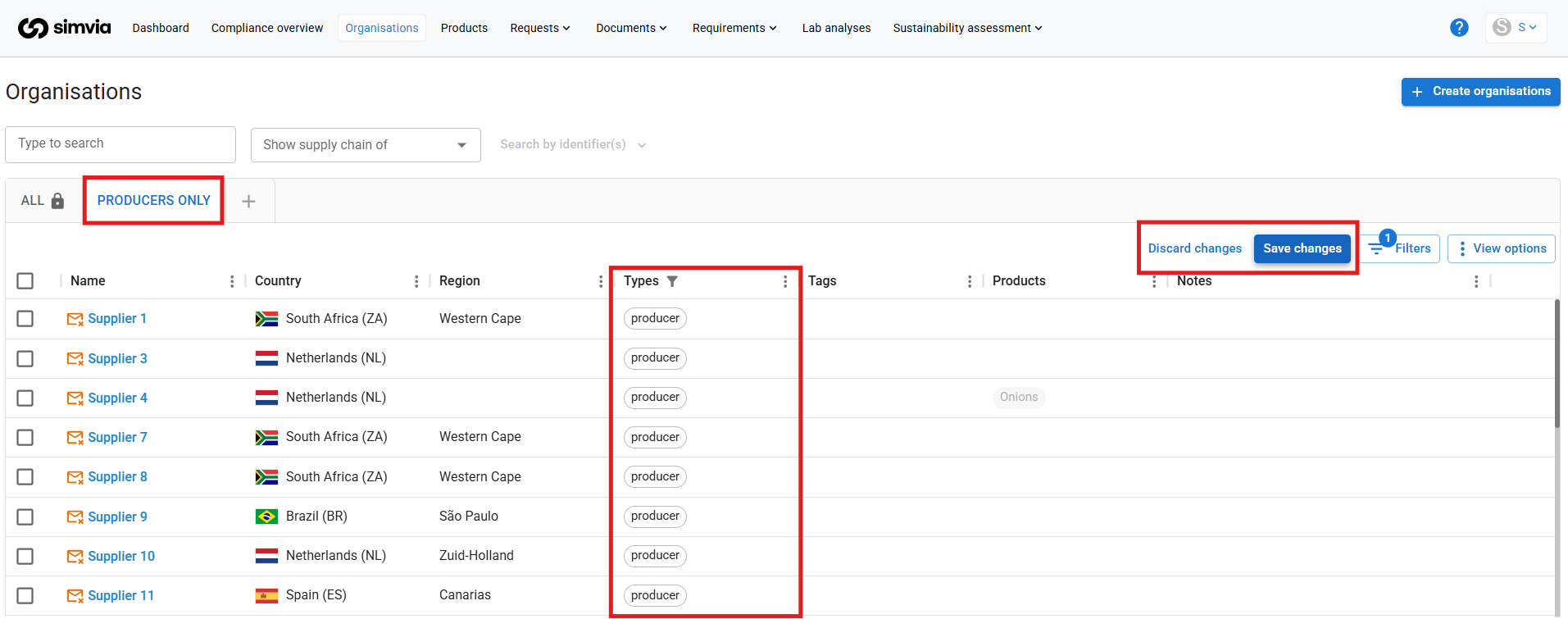
The filtered result is saved as a new custom view.
---
#### Managing your custom views
Once a custom view is created, you can manage it directly from the view menu.
Right-click on a view to:
- Rename the view
- Duplicate the view
- Delete the view
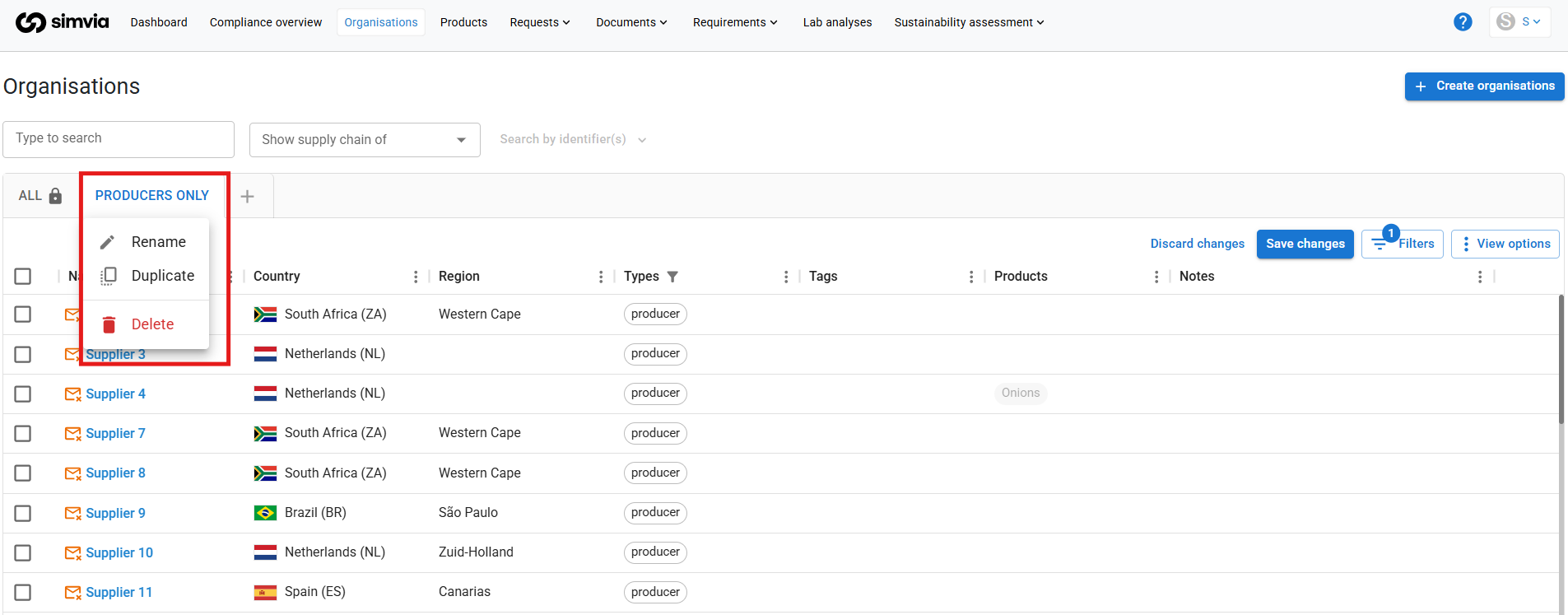
This allows you to refine your views over time or create variations for different use cases.
---
#### Using custom views effectively
Custom views are designed to support day-to-day work. Switching between views instantly updates the list based on your saved filters.
Because custom views are saved automatically, you do not need to recreate them each time you log in.
Using custom views helps you quickly navigate between different groups of **organisations or products**, keeping your lists organised and easier to manage.
- [Getting Started](https://helpcenter.simvia.com/knowledge-base/getting-started?hsLang=en#main-content)
- [About Simvia](https://helpcenter.simvia.com/knowledge-base/getting-started?hsLang=en#about-simvia)
- [Navigating the Platform](https://helpcenter.simvia.com/knowledge-base/getting-started?hsLang=en#navigating-the-platform)
- [Account & Access](https://helpcenter.simvia.com/knowledge-base/getting-started?hsLang=en#account-access)
- [Supply Chain Approval (SCA)](https://helpcenter.simvia.com/knowledge-base/supply-chain-approval-sca?hsLang=en#main-content)
- [Dashboard](https://helpcenter.simvia.com/knowledge-base/supply-chain-approval-sca?hsLang=en#dashboard)
- [Compliance Overview](https://helpcenter.simvia.com/knowledge-base/supply-chain-approval-sca?hsLang=en#compliance-overview)
- [Organisations](https://helpcenter.simvia.com/knowledge-base/supply-chain-approval-sca?hsLang=en#organisations)
- [Products](https://helpcenter.simvia.com/knowledge-base/supply-chain-approval-sca?hsLang=en#products)
- [Requests](https://helpcenter.simvia.com/knowledge-base/supply-chain-approval-sca?hsLang=en#requests)
- [Documents](https://helpcenter.simvia.com/knowledge-base/supply-chain-approval-sca?hsLang=en#documents)
- [Requirements](https://helpcenter.simvia.com/knowledge-base/supply-chain-approval-sca?hsLang=en#requirements)
- [PPWR](https://helpcenter.simvia.com/knowledge-base/ppwr?hsLang=en)
- [Sustainability Risk Assessment (SRA)](https://helpcenter.simvia.com/knowledge-base/sustainability-risk-assessment-sra?hsLang=en)
- [Connections](https://helpcenter.simvia.com/knowledge-base/connections?hsLang=en#main-content)
- [Certification Databases](https://helpcenter.simvia.com/knowledge-base/connections?hsLang=en#certification-databases)
- [Laboratory Integrations](https://helpcenter.simvia.com/knowledge-base/connections?hsLang=en#laboratory-integrations)
- [Updates](https://helpcenter.simvia.com/knowledge-base/updates?hsLang=en#main-content)
- [Release Notes 2026](https://helpcenter.simvia.com/knowledge-base/updates?hsLang=en#release-notes-2026)
- [Release Notes 2025](https://helpcenter.simvia.com/knowledge-base/updates?hsLang=en#release-notes-2025)
[](https://www.simvia.com/)
Copyright © 2026, Simvia