---
title: How to Set Up a Requirement Rule
description: Create requirement rules to define which documents to collect from organisations and automate requests using requirement cards and target groups.
---
[Skip to content](https://helpcenter.simvia.com/knowledge-base/creating-and-managing-requirement-rules#main-content)
English
Show submenu for translations
[](https://helpcenter.simvia.com/knowledge-base?hsLang=en)
Open main navigation
Close main navigation
- English
Show submenu for translations
This is a search field with an auto-suggest feature attached.
- There are no suggestions because the search field is empty.
1. [Help Center](https://helpcenter.simvia.com/knowledge-base?hsLang=en)
2. [Supply Chain Approval (SCA)](https://helpcenter.simvia.com/knowledge-base/supply-chain-approval-sca?hsLang=en)
3. [Requirements](https://helpcenter.simvia.com/knowledge-base/supply-chain-approval-sca?hsLang=en#requirements)
# How to Set Up a Requirement Rule
Requirement rules allow you to define which documents you want to collect from specific groups of organisations and whether requests should be sent automatically.
---
#### Key Terms
**Requirement rule**
A requirement rule contains one or more requirement cards and is linked to one or more target groups.
**Requirement card**
A requirement card defines which document(s) are requested.
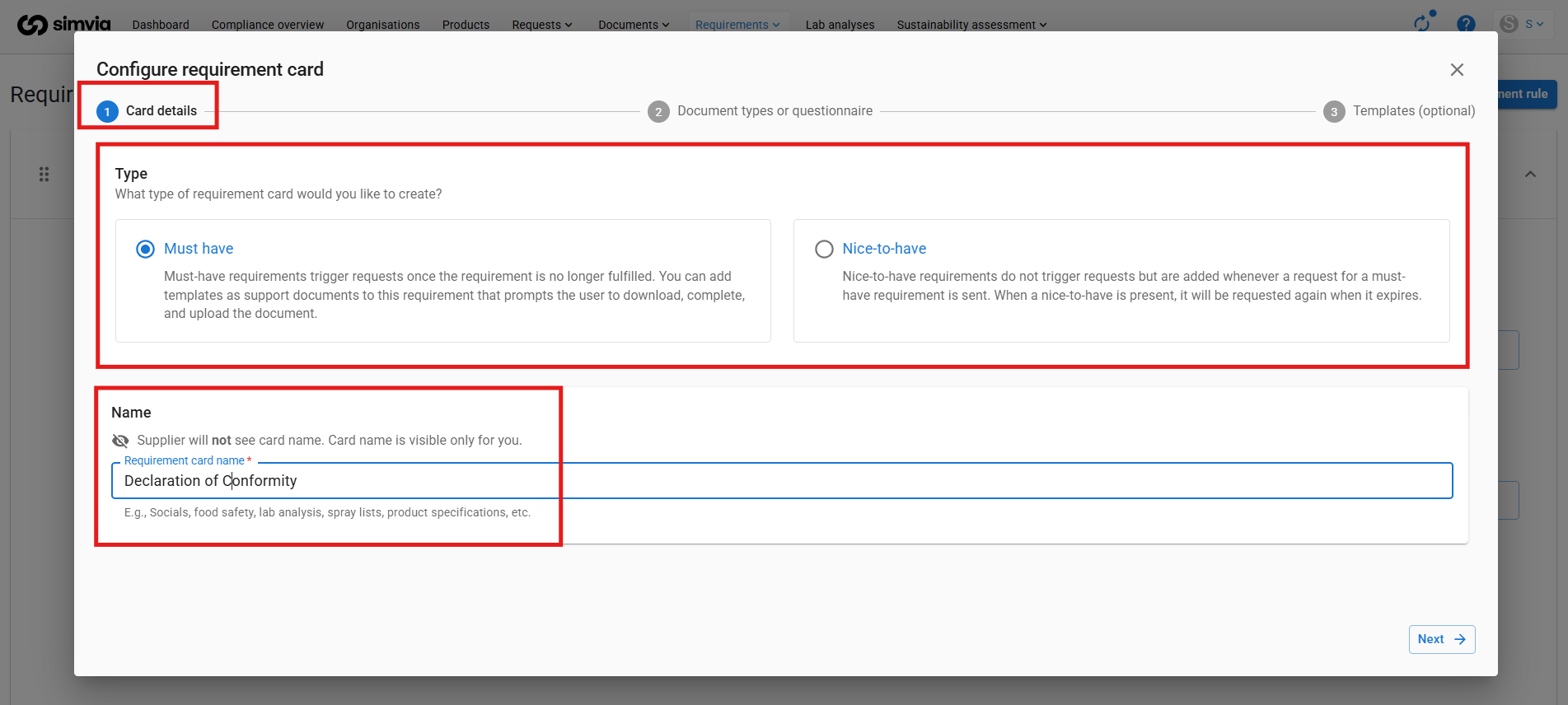
- **Must-have** – mandatory documents
- **Nice-to-have** – optional documents
A rule can contain multiple cards.
---
#### Step-by-Step: Creating a Requirement Rule
### Step 1
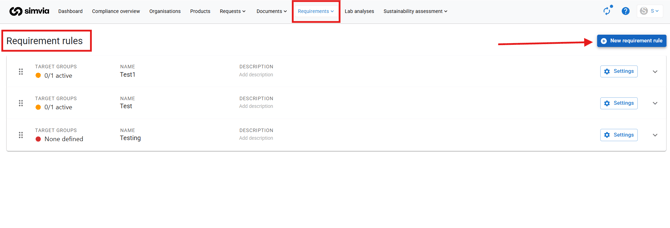
Go to **Requirement rules** in the top navigation bar.
---
### Step 2
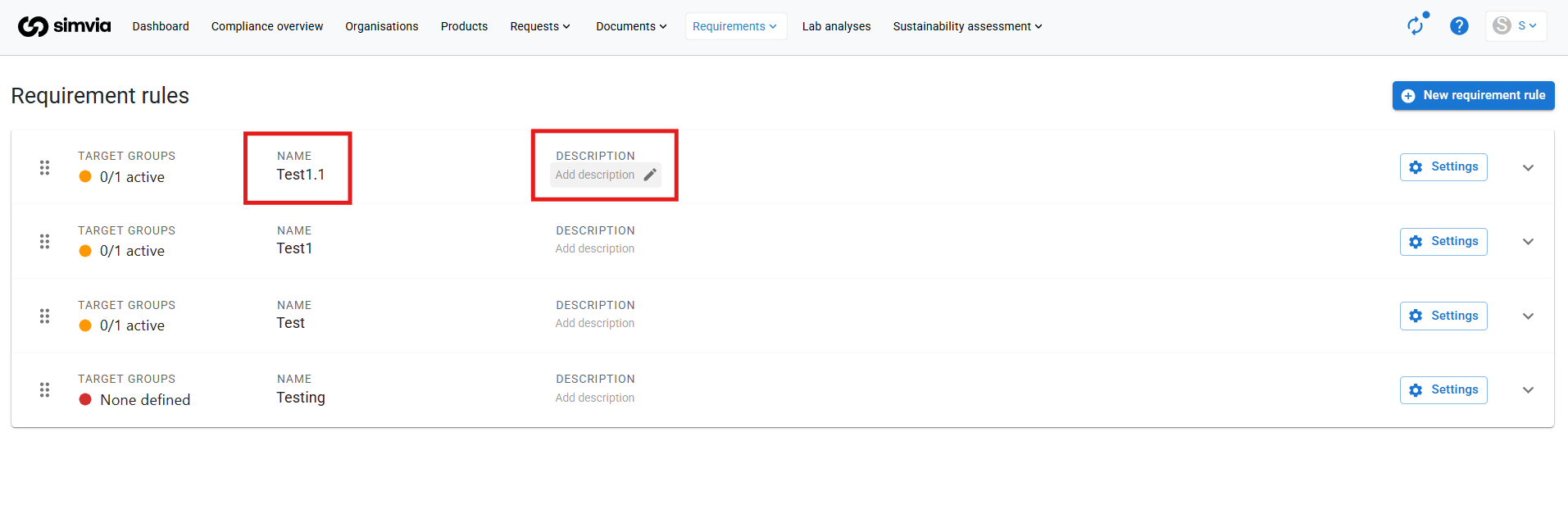
Create and configure your rule:
- Enter a name for the rule
- (Optional) Add a description for internal use
*(The description is not visible to suppliers.)*
---
### Step 3
Add requirement cards to define which documents you want to request:
- Name each card
- Select the document type(s)
Important:
- One card equals one requirement
- If you need multiple different documents, create multiple cards
You can also attach a template from **Own documents** if suppliers need to complete a specific form.
---
### Step 4 – Define the Target Group
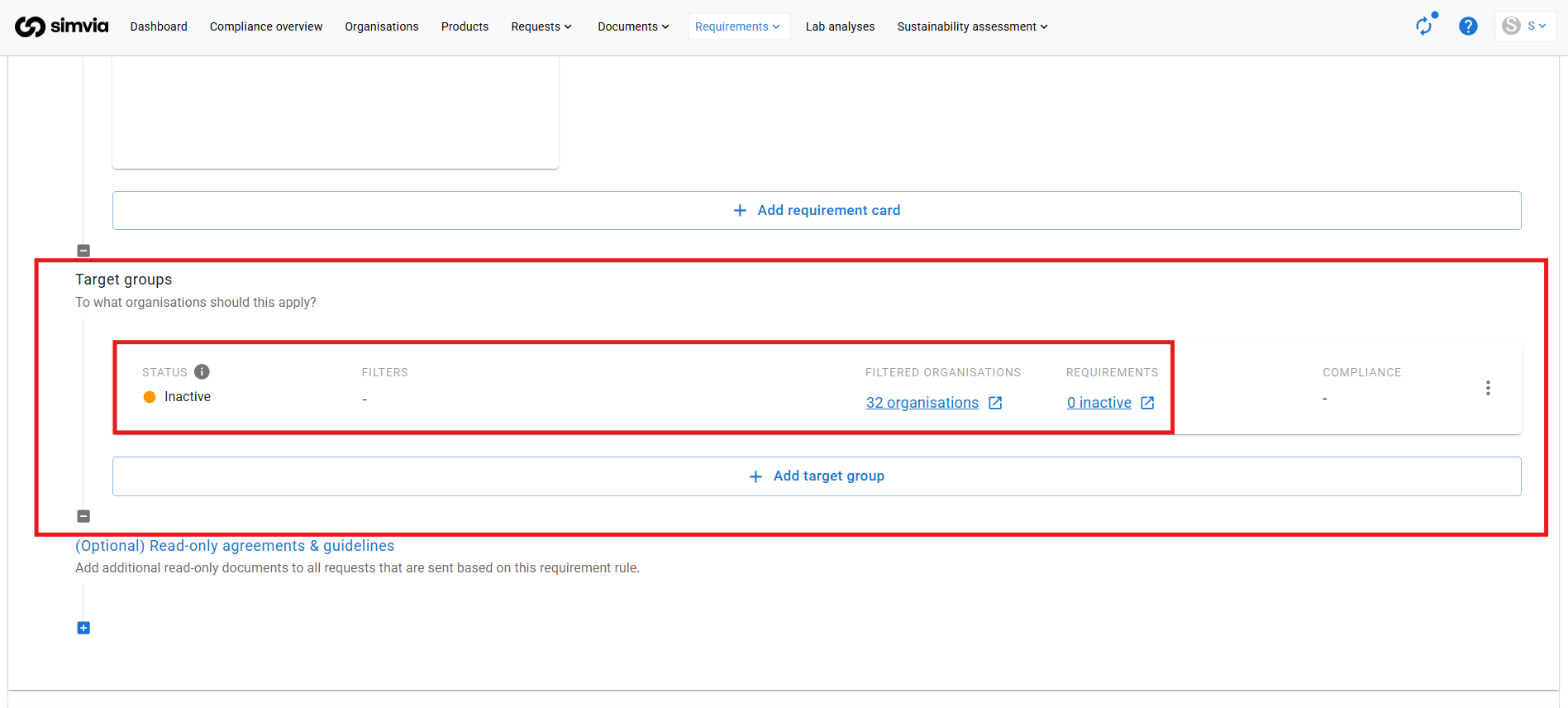
The target group determines which organisations the rule applies to.
You can define target groups based on:
- Tags
- Countries
- Organisation types
- Products
- Other filters
---
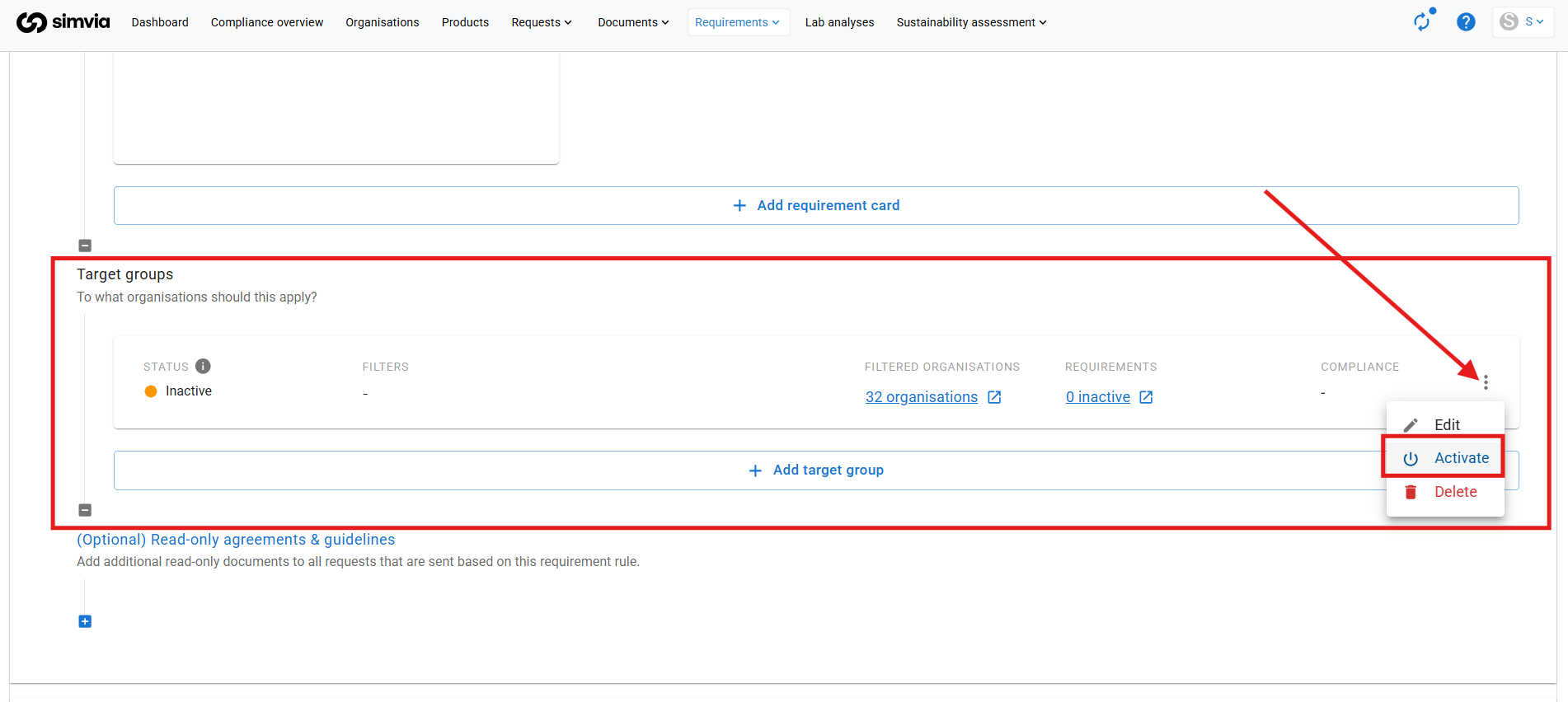
### Step 5 – Activate the Rule
Activate the target group to start generating requirements.
Once active:
- Automatic document requests are sent
- Requirements appear on the **All requirements** page
---
#### Target Group Statuses
Each target group has a status:
**Active (Green icon)**
Automatic document requests are sent and requirements are visible.
**Inactive (Yellow icon)**
No automatic requests are sent. Used for internal insight or monitoring.
**Not Configured (Red icon)**
The target group has not yet been created.
If a rule contains multiple target groups, you can activate some while keeping others inactive.
- [Getting Started](https://helpcenter.simvia.com/knowledge-base/getting-started?hsLang=en#main-content)
- [About Simvia](https://helpcenter.simvia.com/knowledge-base/getting-started?hsLang=en#about-simvia)
- [Navigating the Platform](https://helpcenter.simvia.com/knowledge-base/getting-started?hsLang=en#navigating-the-platform)
- [Account & Access](https://helpcenter.simvia.com/knowledge-base/getting-started?hsLang=en#account-access)
- [Supply Chain Approval (SCA)](https://helpcenter.simvia.com/knowledge-base/supply-chain-approval-sca?hsLang=en#main-content)
- [Dashboard](https://helpcenter.simvia.com/knowledge-base/supply-chain-approval-sca?hsLang=en#dashboard)
- [Compliance Overview](https://helpcenter.simvia.com/knowledge-base/supply-chain-approval-sca?hsLang=en#compliance-overview)
- [Organisations](https://helpcenter.simvia.com/knowledge-base/supply-chain-approval-sca?hsLang=en#organisations)
- [Products](https://helpcenter.simvia.com/knowledge-base/supply-chain-approval-sca?hsLang=en#products)
- [Requests](https://helpcenter.simvia.com/knowledge-base/supply-chain-approval-sca?hsLang=en#requests)
- [Documents](https://helpcenter.simvia.com/knowledge-base/supply-chain-approval-sca?hsLang=en#documents)
- [Requirements](https://helpcenter.simvia.com/knowledge-base/supply-chain-approval-sca?hsLang=en#requirements)
- [PPWR](https://helpcenter.simvia.com/knowledge-base/ppwr?hsLang=en)
- [Sustainability Risk Assessment (SRA)](https://helpcenter.simvia.com/knowledge-base/sustainability-risk-assessment-sra?hsLang=en)
- [Connections](https://helpcenter.simvia.com/knowledge-base/connections?hsLang=en#main-content)
- [Certification Databases](https://helpcenter.simvia.com/knowledge-base/connections?hsLang=en#certification-databases)
- [Laboratory Integrations](https://helpcenter.simvia.com/knowledge-base/connections?hsLang=en#laboratory-integrations)
- [Updates](https://helpcenter.simvia.com/knowledge-base/updates?hsLang=en#main-content)
- [Release Notes 2026](https://helpcenter.simvia.com/knowledge-base/updates?hsLang=en#release-notes-2026)
- [Release Notes 2025](https://helpcenter.simvia.com/knowledge-base/updates?hsLang=en#release-notes-2025)
[](https://www.simvia.com/)
Copyright © 2026, Simvia