
Deactivating & Blocking Organisations
Managing your organisations correctly helps keep your supply chain overview clean and ensures the right requests are sent at the right time.
In Simvia, you can either deactivate or block an organisation — depending on whether the stop in collaboration is permanent or temporary.
Deactivating an Organisation
When should you deactivate an organisation?
Deactivate an organisation when:
-
You no longer work with this supplier (long-term or permanently)
-
The collaboration has ended
-
You want to remove the organisation from your active overview
What happens when you deactivate an organisation?
-
The organisation is removed from your default Organisations overview
-
No new document requests will be generated for that organisation
-
Existing requirements and documents remain stored in your account
-
The organisation can still be found using filters if needed
Deactivating organisations helps keep your active supply chain clean and focused.
How to deactivate an organisation
-
Go to Organisations
-
Select the organisation using the checkbox on the left
-
Click Manage Supply Chain
-
Select Deactivate
You will receive a confirmation message once the organisation has been successfully deactivated.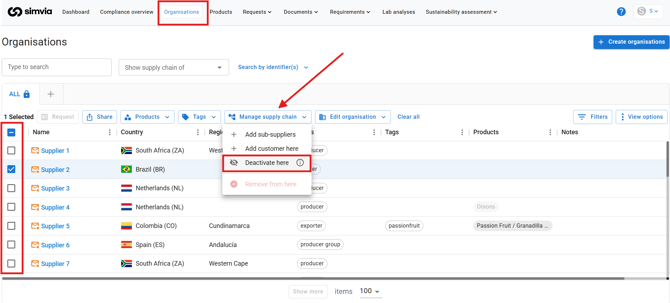
How to view inactive organisations
Inactive organisations are hidden by default.
To display them:
-
Go to Organisations
-
Click Filters
-
Select Inactive
-
Choose Inactive and Active
-
Close the filter panel
Inactive organisations will now be visible and marked as Inactive.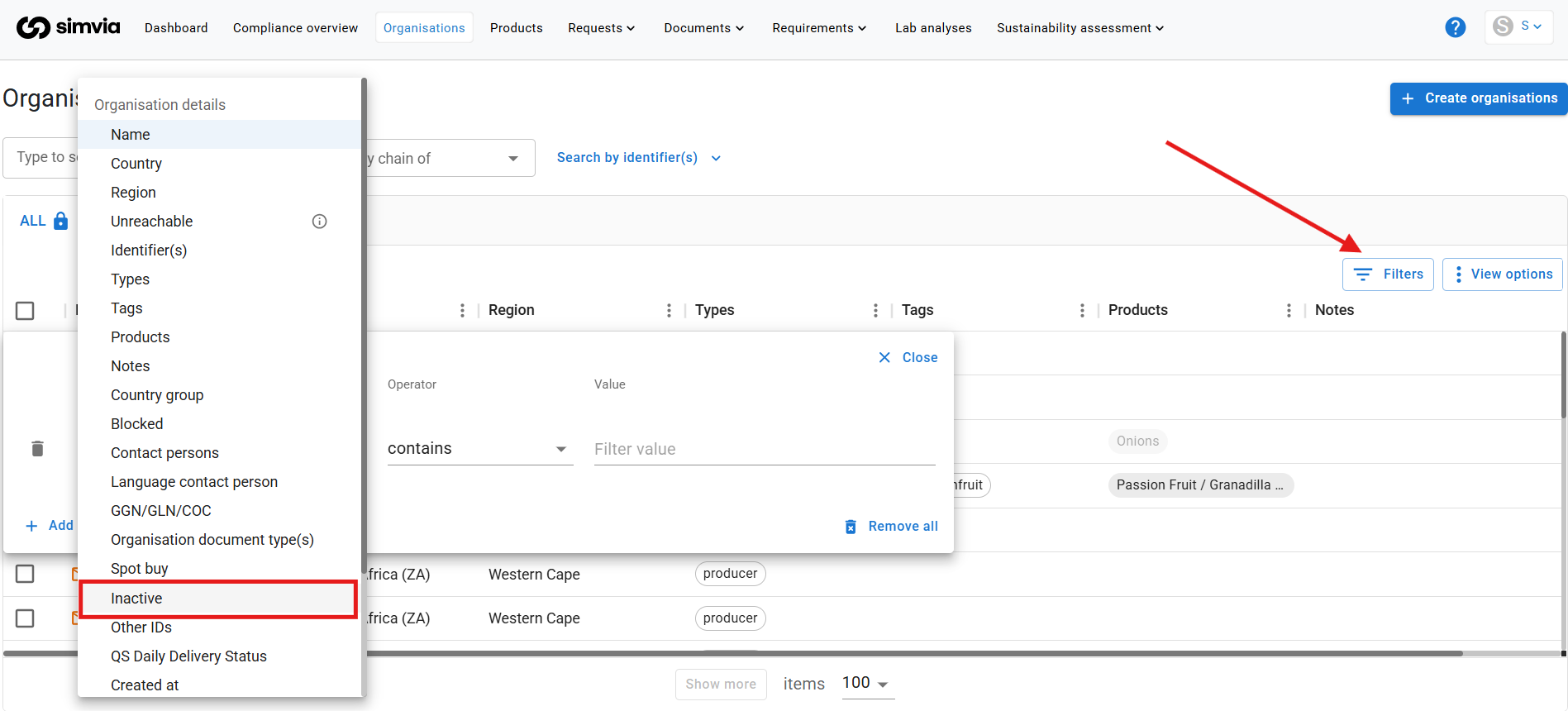
Blocking an Organisation
When should you block an organisation?
Block an organisation when:
- The collaboration is temporarily paused
- You expect to work together again in the future
- You want to stop automatic requests without deleting requirements
What happens when you block?
- Requirements remain in place
- Automatic document requests are paused
- The organisation remains visible in your overview
- You can easily unblock it later
Blocking is ideal for seasonal suppliers or temporary suspensions.
How to block an organisation
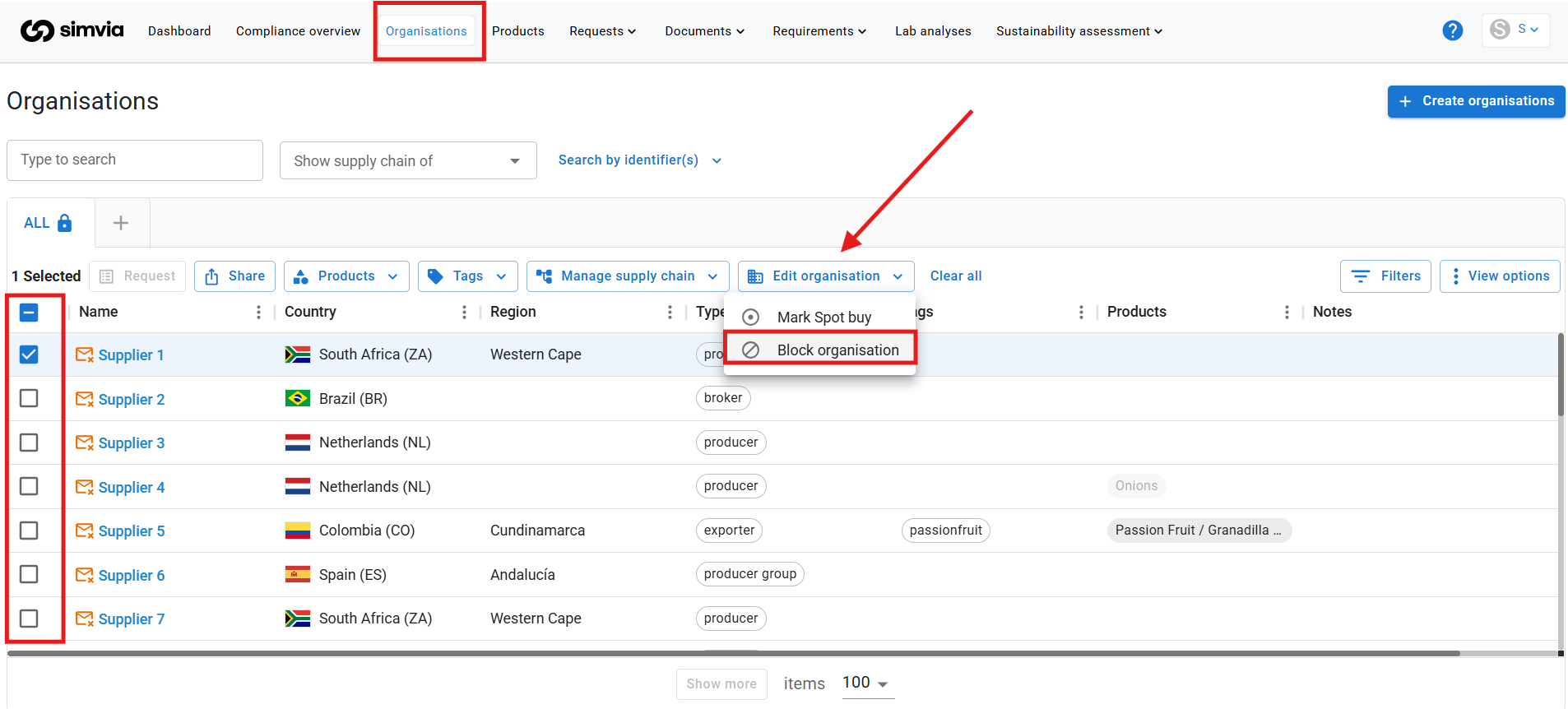
- Go to Organisations
- Select the organisation using the checkbox
- Click Edit organisations
- Select Block
- (Optional) Add a reason in the pop-up
- Confirm blocking
Blocked organisations remain visible and are clearly marked in the overview.
Deactivate vs. Block – Quick Comparison
| Deactivate | Block |
|---|---|
| Permanent stop | Temporary stop |
| Requirements remain but no new requests are generated | Requirements remain |
| Removed from default overview | Remains visible |
| No requests generated | Requests paused |
Best practice
- Use Deactivate for organisations you no longer work with.
- Use Block for temporary pauses.
When in doubt, blocking is safer — as it keeps your requirements intact.