---
title: Document Archiving Settings
description: Learn how to configure document archiving settings to automatically archive expired documents and keep your document library organised.
---
[Skip to content](https://helpcenter.simvia.com/knowledge-base/document-archiving-settings#main-content)
English
Show submenu for translations
[](https://helpcenter.simvia.com/knowledge-base?hsLang=en)
Open main navigation
Close main navigation
- English
Show submenu for translations
This is a search field with an auto-suggest feature attached.
- There are no suggestions because the search field is empty.
1. [Help Center](https://helpcenter.simvia.com/knowledge-base?hsLang=en)
2. [Getting Started](https://helpcenter.simvia.com/knowledge-base/getting-started?hsLang=en)
3. [Account & Access](https://helpcenter.simvia.com/knowledge-base/getting-started?hsLang=en#account-access)
# Document Archiving Settings
The **Document settings** tab allows you to define how expired documents are handled in your account. With archiving rules, you can keep your document library clean and organised automatically.
---
#### Archiving rules
### Automatically archive expired documents
You can enable automatic archiving of documents after they expire.
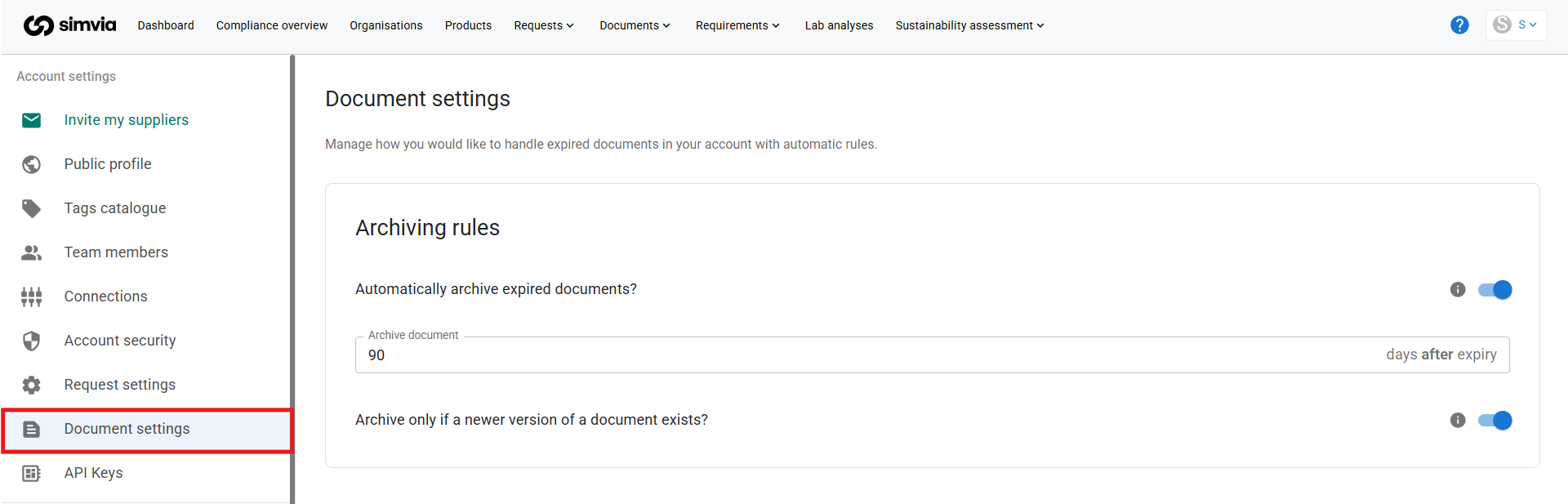
When activated, you can define:
- The number of **days after expiry** before a document is archived
For example:
- If set to **90 days**, documents will be archived 90 days after their expiry date.
Archiving does not delete documents. It simply removes them from the default active view.
---
### Archive only if a newer version exists
You can choose to archive expired documents only when a newer version has already been uploaded.
If enabled:
- Expired documents remain active until a valid replacement is available.
- This ensures you never lose visibility of the most recent document if no update has been provided yet.
If disabled:
- Documents will be archived based solely on the defined timeframe after expiry.
---
#### Important
- Archiving runs as a scheduled task, not instantly.
- Archived documents can still be accessed by enabling the “Include archived” filter in the Documents pages.
- Archiving does not affect compliance status. Expired documents will still show as expired in your compliance overview.
---
#### Best practice
- Use automatic archiving to prevent clutter in large supplier networks.
- Enable conditional archiving if you prefer to keep expired documents visible until replacements are uploaded.
Well-configured document settings help maintain a structured and manageable document library without manual cleanup.
- [Getting Started](https://helpcenter.simvia.com/knowledge-base/getting-started?hsLang=en#main-content)
- [About Simvia](https://helpcenter.simvia.com/knowledge-base/getting-started?hsLang=en#about-simvia)
- [Navigating the Platform](https://helpcenter.simvia.com/knowledge-base/getting-started?hsLang=en#navigating-the-platform)
- [Account & Access](https://helpcenter.simvia.com/knowledge-base/getting-started?hsLang=en#account-access)
- [Supply Chain Approval (SCA)](https://helpcenter.simvia.com/knowledge-base/supply-chain-approval-sca?hsLang=en#main-content)
- [Dashboard](https://helpcenter.simvia.com/knowledge-base/supply-chain-approval-sca?hsLang=en#dashboard)
- [Compliance Overview](https://helpcenter.simvia.com/knowledge-base/supply-chain-approval-sca?hsLang=en#compliance-overview)
- [Organisations](https://helpcenter.simvia.com/knowledge-base/supply-chain-approval-sca?hsLang=en#organisations)
- [Products](https://helpcenter.simvia.com/knowledge-base/supply-chain-approval-sca?hsLang=en#products)
- [Requests](https://helpcenter.simvia.com/knowledge-base/supply-chain-approval-sca?hsLang=en#requests)
- [Documents](https://helpcenter.simvia.com/knowledge-base/supply-chain-approval-sca?hsLang=en#documents)
- [Requirements](https://helpcenter.simvia.com/knowledge-base/supply-chain-approval-sca?hsLang=en#requirements)
- [PPWR](https://helpcenter.simvia.com/knowledge-base/ppwr?hsLang=en)
- [Sustainability Risk Assessment (SRA)](https://helpcenter.simvia.com/knowledge-base/sustainability-risk-assessment-sra?hsLang=en)
- [Connections](https://helpcenter.simvia.com/knowledge-base/connections?hsLang=en#main-content)
- [Certification Databases](https://helpcenter.simvia.com/knowledge-base/connections?hsLang=en#certification-databases)
- [Laboratory Integrations](https://helpcenter.simvia.com/knowledge-base/connections?hsLang=en#laboratory-integrations)
- [Updates](https://helpcenter.simvia.com/knowledge-base/updates?hsLang=en#main-content)
- [Release Notes 2026](https://helpcenter.simvia.com/knowledge-base/updates?hsLang=en#release-notes-2026)
- [Release Notes 2025](https://helpcenter.simvia.com/knowledge-base/updates?hsLang=en#release-notes-2025)
[](https://www.simvia.com/)
Copyright © 2026, Simvia