
Before you start
There are two ways to remove a product from use, and it's important to pick the right one:
- Delete — removes the product completely from your account, for every organisation it's linked to. This can't be undone.
- Deactivate at organisation level — keeps the product in your account, but switches it off for one specific organisation only. Every other organisation keeps using it as normal, and you can reactivate it at any time.
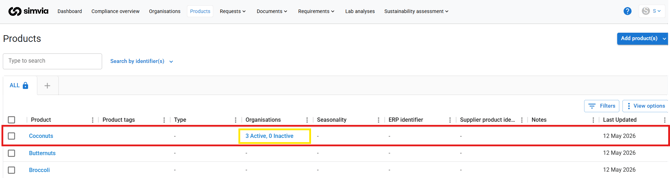
For example, say Coconuts is linked to 3 organisations — shown as "3 Active, 0 Inactive" in the Organisations column.
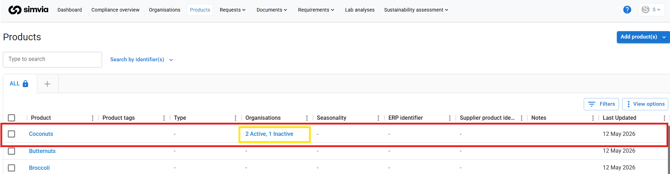
If you deactivate Coconuts for one of those organisations, it stays active for the other 2 — and the column now shows "2 Active, 1 Inactive." If you delete Coconuts instead, it disappears from your account entirely, for all 3 organisations.
Unless you're sure you'll never need the product again, deactivating at organisation level is the safer choice.
Steps
1. Add a product
You can add products in two places, depending on what's fastest for you:
From the Products tab
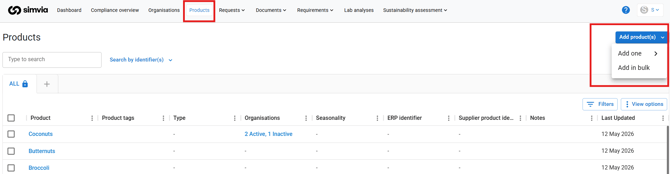
- Go to the Products tab.
- Click Add product(s) in the top right.
- Choose single to add one product at a time, or bulk to add several at once.
From an organisation's details
- Go to Organisations and open the relevant organisation.
- Open the Products tab.
- Click Add products and select the product(s) from your existing portfolio.
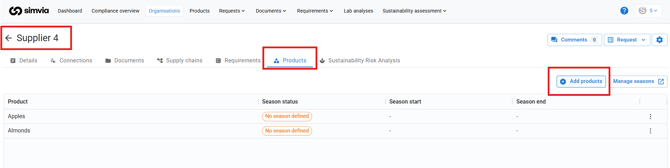
This is the quicker route if the product already exists in your account and you just want to link it to this organisation.
2. Delete a product
- Go to the Products tab.
- Search for the product and select its checkbox.
- Click Delete in the toolbar that appears.
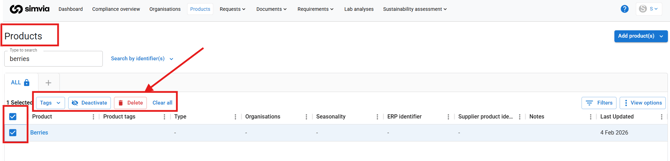
This removes the product from your account entirely, for every organisation it's linked to. Use this only if you're sure you won't need the product again.
3. Activate, deactivate, or reactivate a product for an organisation
Which route to use depends on how many organisations the product is linked to.
Product linked to one organisation
- Go to the Products tab.
- Open Filters and filter by Inactive — or choose to view active and inactive products together, whichever you prefer.
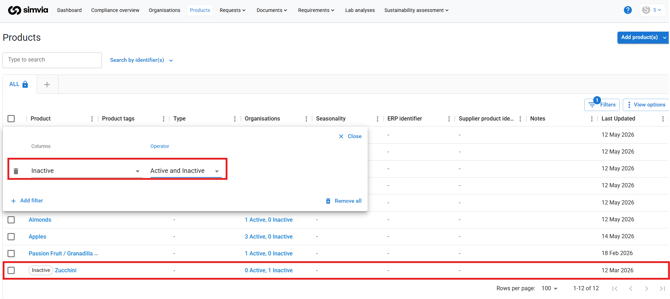
- Select the product you want to activate. This opens a horizontal menu with the option to activate it.
- Choose to activate the product for the relevant organisation.
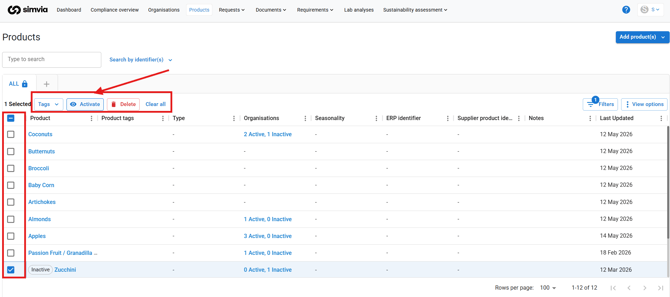
If a product is linked to more than one organisation, you can switch it on or off for a single one without affecting the others.
- Go to the Products tab.
- Search for the product using the search bar — for example, "Coconuts."
- Open the product's details, then go to the Supply chain tab. Here you'll see every organisation the product is linked to, along with its current status.
- Filter by status, or view active and inactive together. This matters most if you're reactivating — inactive organisations won't show up unless you filter for them.
- Select the organisation you want to activate, deactivate, or reactivate. This opens a horizontal menu with the option to switch its status.
a) Activate a product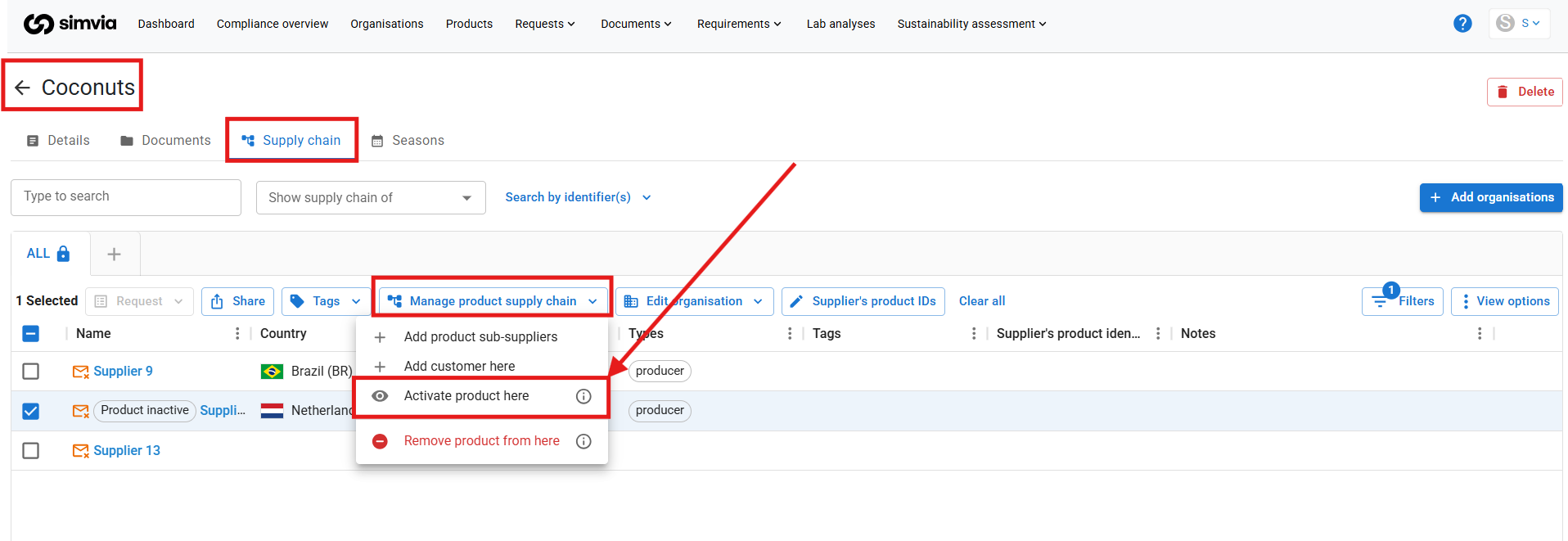
b) Deactivate a product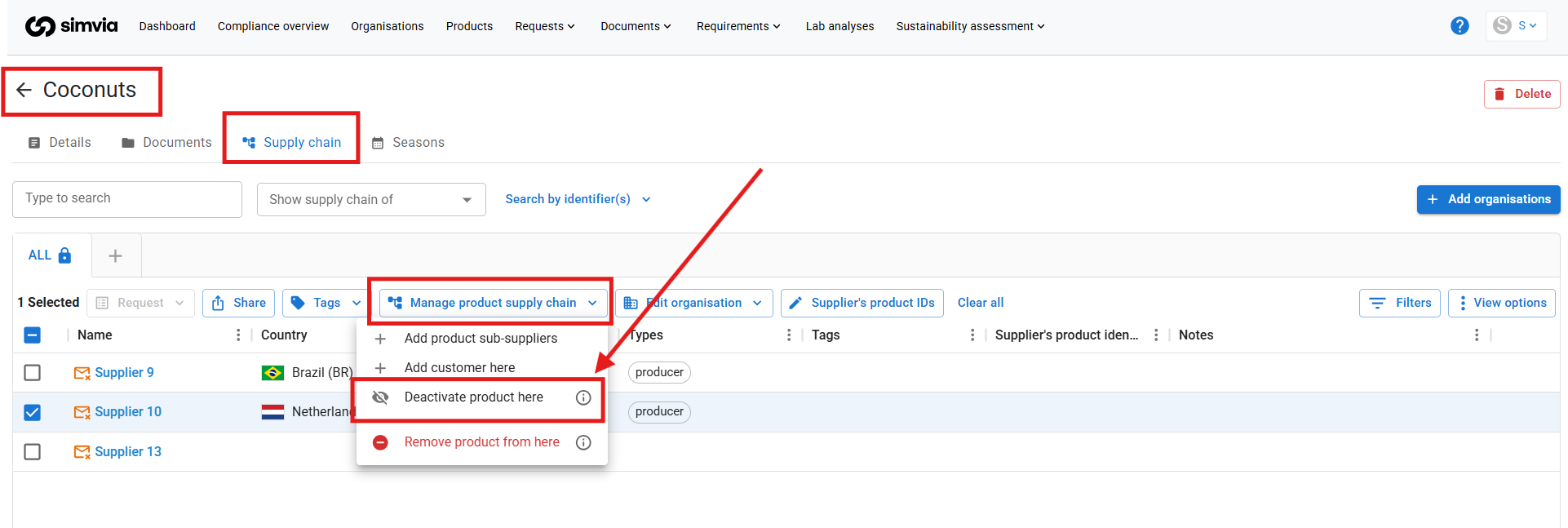
Deactivating only affects that organisation — the product stays active for every other one, and no specifications will be requested from that supplier going forward.
Good to know
- In the Products overview, the Organisations column shows something like "3 Active, 0 Inactive." This means the product is linked to 3 organisations, and it's currently active for all of them.
- If a supplier's price changes and you want to resume ordering later, simply reactivate the product for that organisation — no need to recreate it.