
A single upload allows you to add one document at a time to your account.
This method is ideal when:
- You receive documents individually by email
- You only need to upload a few files
- You want to manually review document details before saving
Where can you upload a single document?
You can upload a document from:
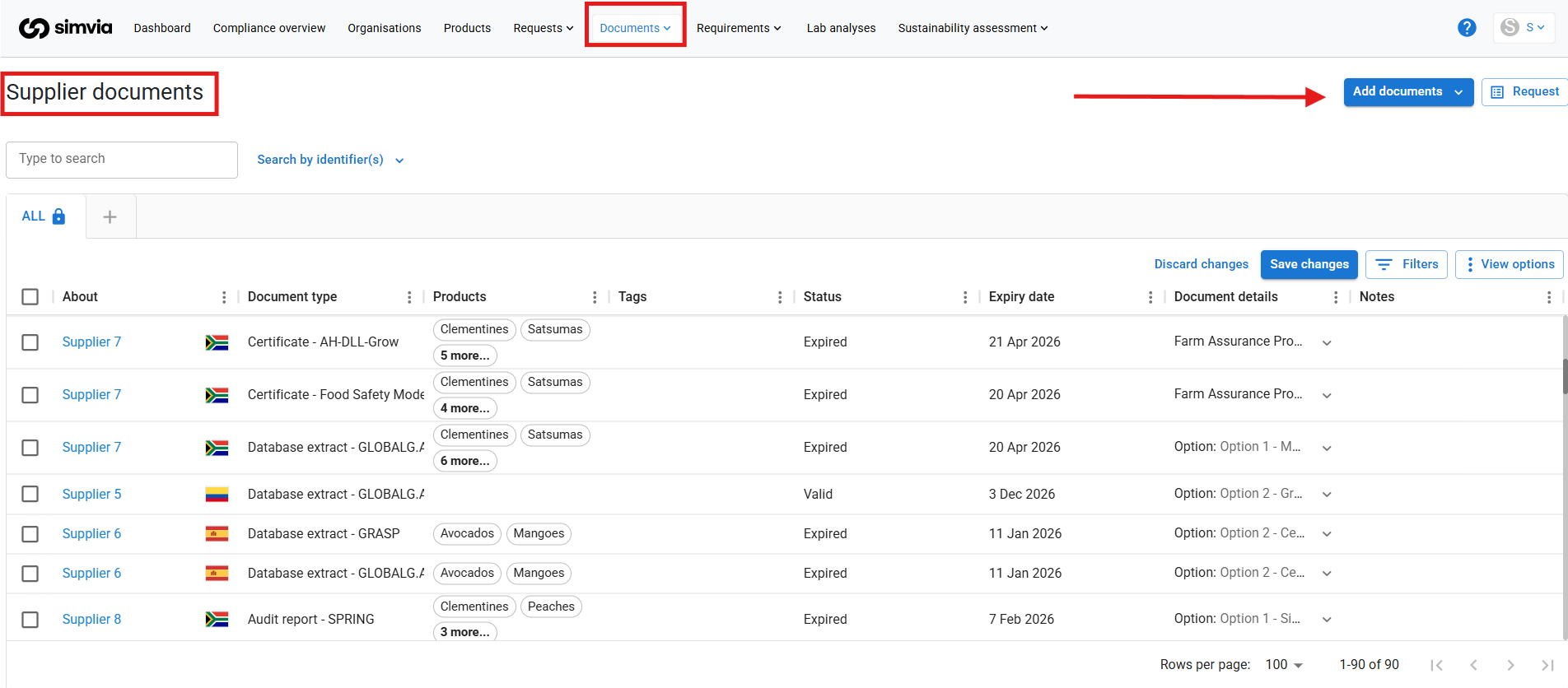
- Documents → Supplier documents
- Inside a specific Organisation page → Documents tab
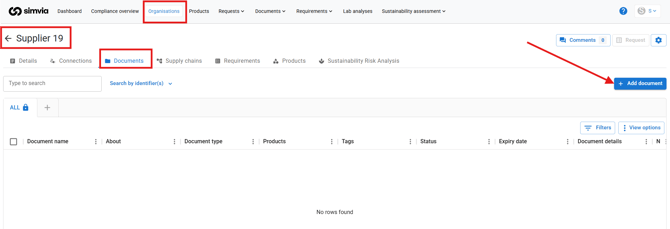
The most common place is:
Documents → Supplier documents → + Add document
How to upload a single document
- Go to Documents → Supplier documents
- Click + Add document
- Upload your file by:
- Dragging it into the upload field, or
- Clicking Upload a single document and selecting it from your computer
Complete the document details
After uploading the file, fill in the required document information:
- Organisation (who the document belongs to)
- Document type
- Expiration date
- Products (if applicable)
- Tags (optional)
Make sure all mandatory fields are completed before saving.
Accurate document details ensure:
- Correct compliance tracking
- Proper requirement matching
- Automatic reminders before expiration
Final step
Once all information is filled in, click Save.
The document will now appear in your document overview and can be used for compliance checks or shared when needed.