---
title: How to Add Organisations in Bulk
description: Learn how to add multiple organisations at once using the bulk import feature, including how to use the table view, Excel template, and configure supplier relationships during import.
---
[Skip to content](https://helpcenter.simvia.com/knowledge-base/how-to-add-organisations-in-bulk#main-content)
English
Show submenu for translations
[](https://helpcenter.simvia.com/knowledge-base?hsLang=en)
Open main navigation
Close main navigation
- English
Show submenu for translations
This is a search field with an auto-suggest feature attached.
- There are no suggestions because the search field is empty.
1. [Help Center](https://helpcenter.simvia.com/knowledge-base?hsLang=en)
2. [Supply Chain Approval (SCA)](https://helpcenter.simvia.com/knowledge-base/supply-chain-approval-sca?hsLang=en)
3. [Organisations](https://helpcenter.simvia.com/knowledge-base/supply-chain-approval-sca?hsLang=en#organisations)
# How to Add Organisations in Bulk
If you need to add multiple suppliers at once, the **bulk import** feature is the fastest and most efficient method.
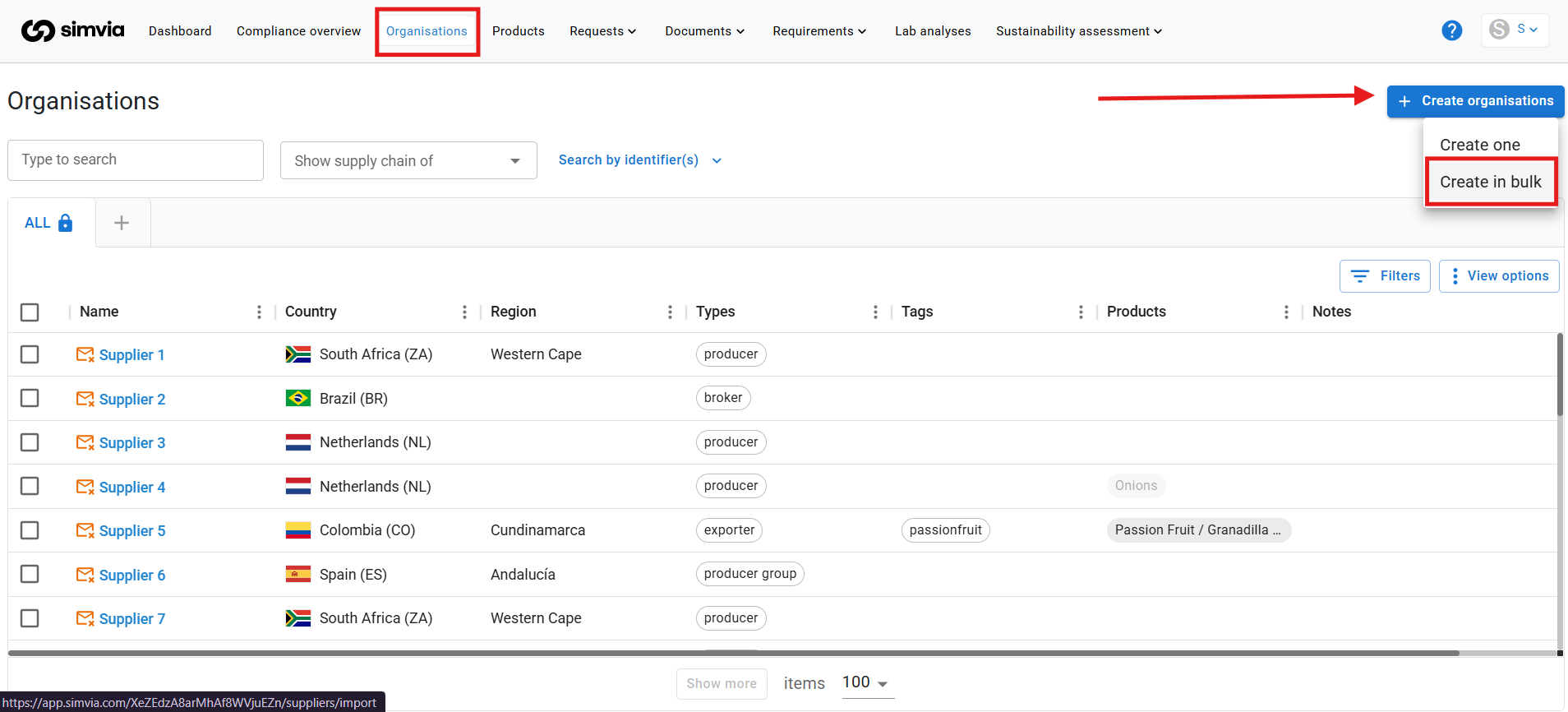
To access bulk import:
1. Go to **Organisations**
2. Click **Add organisations**
3. Select **Add in bulk
**
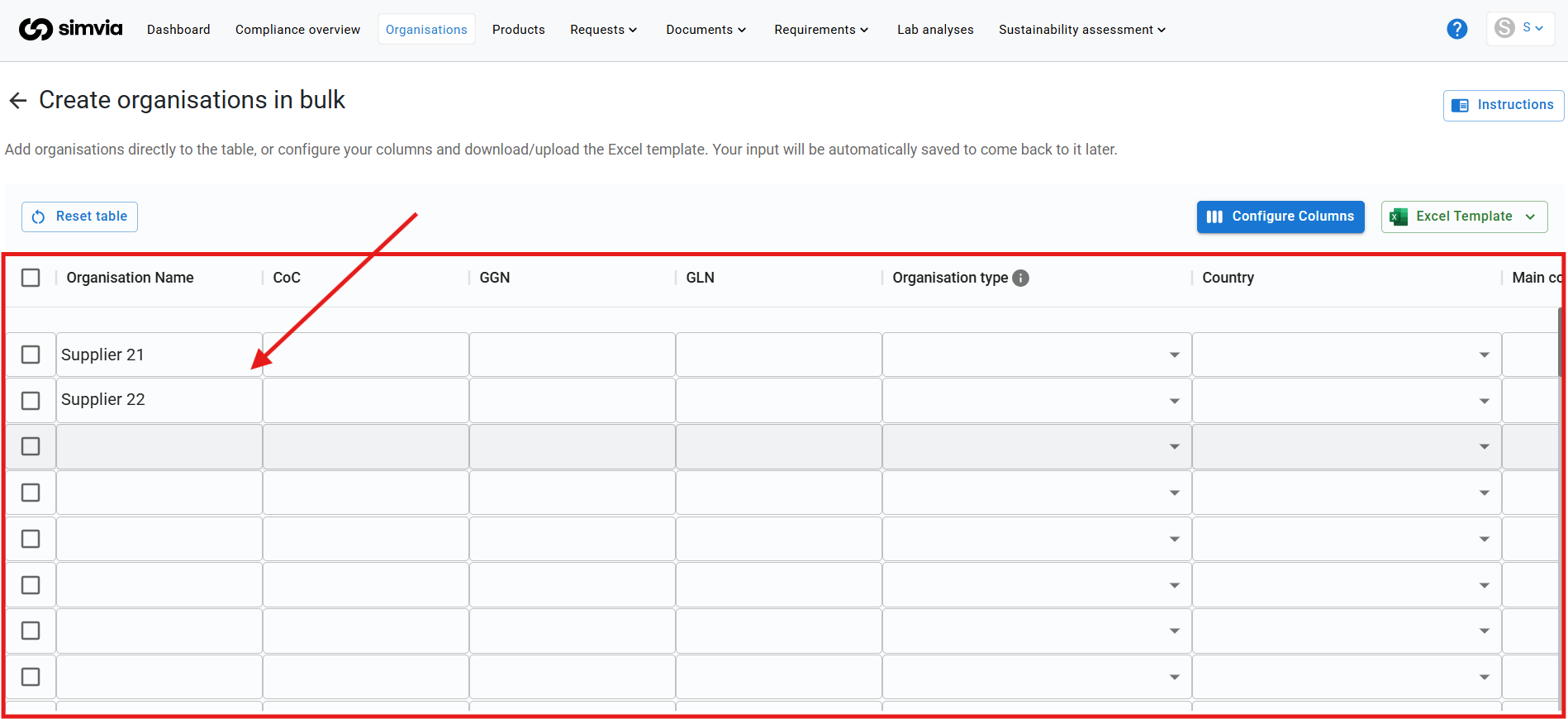
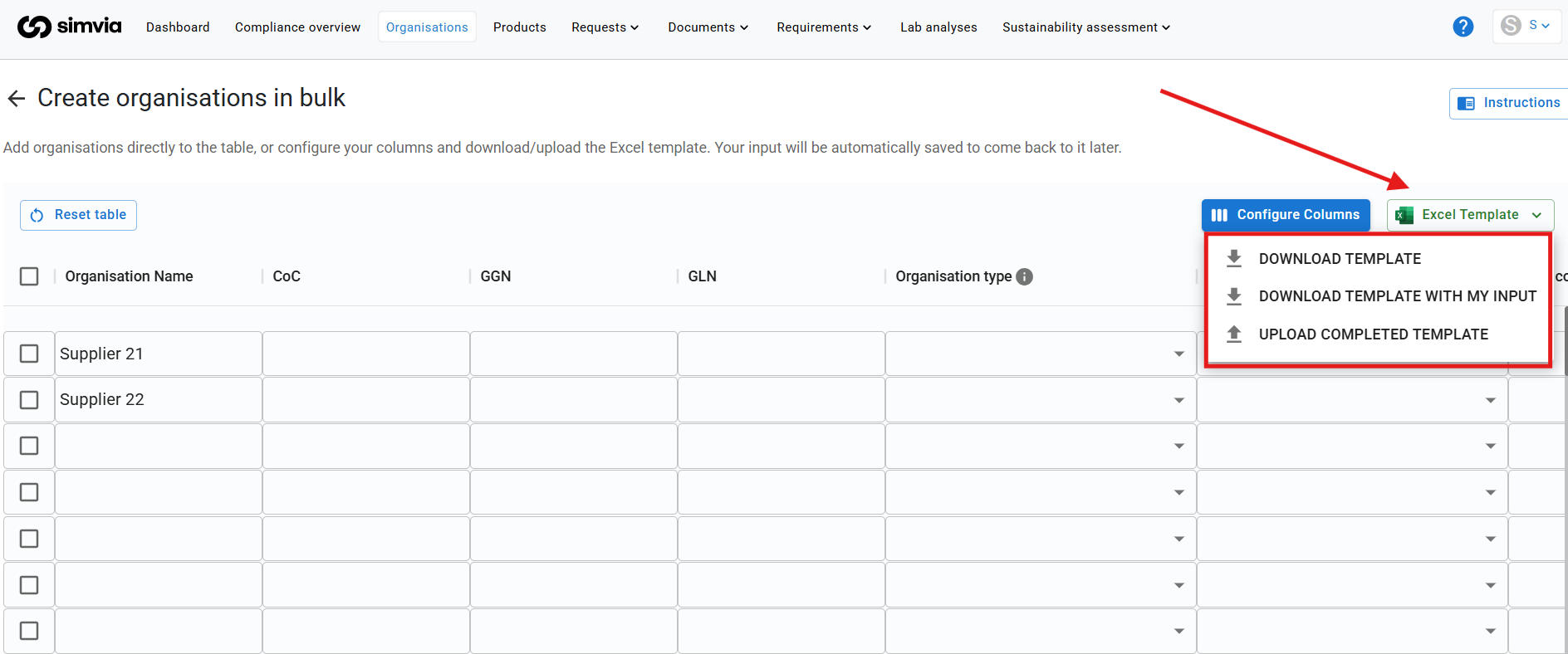
You can add organisations in two ways:
- Directly in the table
- By uploading an Excel template
All entered data is saved automatically, so you can return later and continue where you left off.
---
#### Available actions
Above the table, you will find several options:
### Sync GGN numbers
If enabled, the system automatically retrieves supplier data (such as name, address, and country) from the GlobalG.A.P. database when a valid GGN is provided.
### Configure columns
Customize which columns are visible in the table.
These selected columns will also appear in the downloadable Excel template.
### Excel template
Download the Excel template for offline completion or upload a completed file.
---
### Option 1: Add via table
You can manually enter organisation data directly into the table. This is useful for smaller imports or testing how the data will be processed.
### Handling errors
If invalid data is entered:
- An error button will appear below the table.
- Clicking the button will jump to the first incorrect cell.
- Hover over the information icon to see what needs to be corrected.
All errors must be resolved before you can submit the import.
### Creating supplier relationships
If one imported organisation is a supplier of another:
- Use the **“Is supplier of”** column.
- Select the correct organisation from the dropdown list.
This allows you to build your supply chain structure during the import process.
### Submitting or resetting
- Click **Submit** to import the organisations.
- Click **Reset table** to clear all entered data and start over.
---
### Option 2: Add via Excel template
For larger datasets, using the Excel template is recommended.
### Steps:
1. Click **Excel template**
2. Download the template
3. Fill in the required fields
4. Save the file as **.xlsx**
5. Upload the completed file
The template contains the same columns as the table view.
### Important note about large numbers (e.g. GGN)
Excel may automatically convert large numbers (such as GGN) into scientific notation (e.g. 1.31313E+12).
To prevent this:
- Change the cell format to **Number** or **Text** before entering the value.
---
#### Upload options
When uploading the Excel file, you can choose to:
- Overwrite all existing data in the table
- Append the new data to the bottom of the table
After submission, all organisations will appear in your Organisations overview.
If GGN sync is enabled, it may take a few minutes for all related supplier data to be retrieved from the database.
---
#### Best practice
- Use bulk import for larger supplier networks.
- Include identifiers such as GGN whenever possible.
- Set up supplier relationships during import to save time later.
- Double-check formatting in Excel before uploading.
- [Getting Started](https://helpcenter.simvia.com/knowledge-base/getting-started?hsLang=en#main-content)
- [About Simvia](https://helpcenter.simvia.com/knowledge-base/getting-started?hsLang=en#about-simvia)
- [Navigating the Platform](https://helpcenter.simvia.com/knowledge-base/getting-started?hsLang=en#navigating-the-platform)
- [Account & Access](https://helpcenter.simvia.com/knowledge-base/getting-started?hsLang=en#account-access)
- [Supply Chain Approval (SCA)](https://helpcenter.simvia.com/knowledge-base/supply-chain-approval-sca?hsLang=en#main-content)
- [Dashboard](https://helpcenter.simvia.com/knowledge-base/supply-chain-approval-sca?hsLang=en#dashboard)
- [Compliance Overview](https://helpcenter.simvia.com/knowledge-base/supply-chain-approval-sca?hsLang=en#compliance-overview)
- [Organisations](https://helpcenter.simvia.com/knowledge-base/supply-chain-approval-sca?hsLang=en#organisations)
- [Products](https://helpcenter.simvia.com/knowledge-base/supply-chain-approval-sca?hsLang=en#products)
- [Requests](https://helpcenter.simvia.com/knowledge-base/supply-chain-approval-sca?hsLang=en#requests)
- [Documents](https://helpcenter.simvia.com/knowledge-base/supply-chain-approval-sca?hsLang=en#documents)
- [Requirements](https://helpcenter.simvia.com/knowledge-base/supply-chain-approval-sca?hsLang=en#requirements)
- [PPWR](https://helpcenter.simvia.com/knowledge-base/ppwr?hsLang=en)
- [Sustainability Risk Assessment (SRA)](https://helpcenter.simvia.com/knowledge-base/sustainability-risk-assessment-sra?hsLang=en)
- [Connections](https://helpcenter.simvia.com/knowledge-base/connections?hsLang=en#main-content)
- [Certification Databases](https://helpcenter.simvia.com/knowledge-base/connections?hsLang=en#certification-databases)
- [Laboratory Integrations](https://helpcenter.simvia.com/knowledge-base/connections?hsLang=en#laboratory-integrations)
- [Updates](https://helpcenter.simvia.com/knowledge-base/updates?hsLang=en#main-content)
- [Release Notes 2026](https://helpcenter.simvia.com/knowledge-base/updates?hsLang=en#release-notes-2026)
- [Release Notes 2025](https://helpcenter.simvia.com/knowledge-base/updates?hsLang=en#release-notes-2025)
[](https://www.simvia.com/)
Copyright © 2026, Simvia