
This article walks you through setting up your product portfolio in Simvia, from adding your first products to understanding how everything fits together in the hierarchy.
Before you start Make sure you know your role under PPWR, this determines which product types are relevant to you. If you already have a bill of materials in an ERP system, your existing structure will likely map closely onto Simvia's hierarchy.
The building blocks
Simvia organises your portfolio into six product types:
- SKU – the finished product you sell to your customers
- Ingredient – a processed input that goes into one of your products, like a dressing, coconut milk, or chocolate chips
- Raw material – an unprocessed input you source, like fresh fruit or bulk flour
- Packaging unit – a combination of one or more packaging components at a specific level, primary, secondary, or tertiary
- Packaging component – a single item of packaging at any level, like a label, a tray, a cardboard box, or a pallet
- Packaging base material – the material used to make a packaging component, like a roll of foil or a sheet of cardboard
For a deeper look at how SKUs, packaging units, and packaging components relate to each other, see Understanding your Packaging Structure: SKU, Packaging Unit & Packaging Component.
Adding products
From the Products page, select Add product(s) to add your first entries.
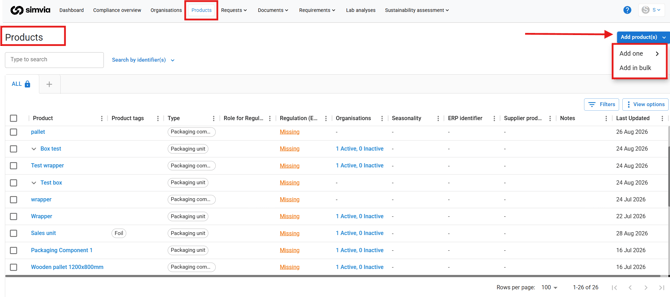
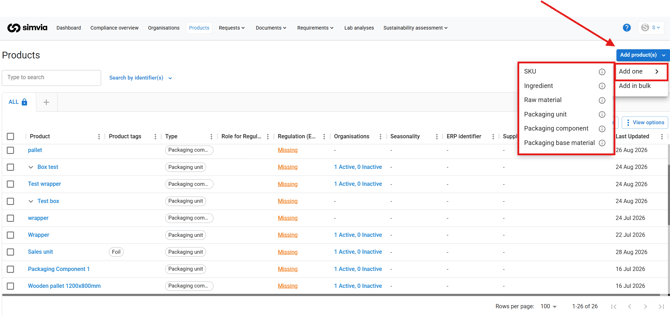
You can add products one at a time or in bulk.
Add one Choose the product type you want to add: SKU, Ingredient, Raw material, Packaging unit, Packaging component, or Packaging base material.
Add in bulk Choose Manage products in bulk, then pick one of two options:
- Set up products & hierarchy – download a template, fill it in, and upload it to get started
- Add packaging & material data – download a template, fill it in, and upload it to complete your product data
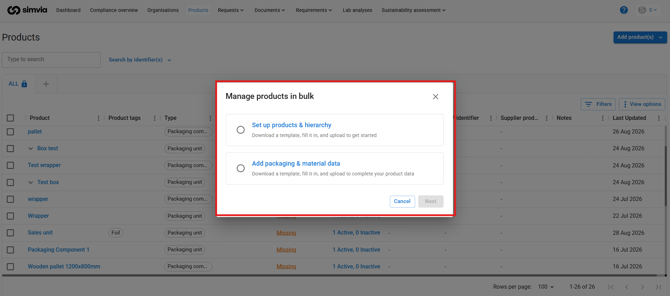
If you are setting up your portfolio for the first time, start with "Set up products & hierarchy," then use "Add packaging & material data" once your structure is in place.
Navigating your product list
Once your products are added, use the tabs above the product list, ALL, SKU, Packaging Units, Packaging Components, to filter by level. This makes it easier to focus on one part of the hierarchy at a time.
The columns most relevant to PPWR are:
- Type – the product type (SKU, Packaging unit, Packaging component, and so on)
- Role for Regulation – your role for this product under PPWR, if applicable
- Regulation (EU) 2025/40 – the conformity status for this product. A status of "Missing" means required data has not yet been provided.
Matching your existing structure
If you already track your bill of materials in an ERP system, your SKUs, packaging units, and components will likely map closely onto Simvia's structure. Setting up the hierarchy is usually a matter of mirroring what you already have, rather than starting from scratch.
Recap
Simvia organises your portfolio across six product types, and you can add them one at a time or in bulk. Once added, use the tabs and the Regulation status column to see what still needs attention.
See it in action
Want a visual walkthrough? Our Strategic Account Executive Sander Frericks recorded a short tour of the Simvia platform, covering the sections in this article.
Related articles
- Understanding your Packaging Structure: SKU, Packaging Unit & Packaging Component
- Getting Started with Simvia for PPWR
- How to Request Packaging Data From Your Suppliers
Need more support? If you have questions about setting up your product portfolio, reach out to our support team.