---
title: How to Review and Accept a Supply Chain Update
description: Learn how to review your supplier's submitted supply chain update in Simvia, check for additions, removals, and flags, and accept or cancel the request.
---
[Skip to content](https://helpcenter.simvia.com/knowledge-base/how-to-review-and-accept-a-supply-chain-update#main-content)
English
Show submenu for translations
[](https://helpcenter.simvia.com/knowledge-base?hsLang=en)
Open main navigation
Close main navigation
- English
Show submenu for translations
This is a search field with an auto-suggest feature attached.
- There are no suggestions because the search field is empty.
1. [Help Center](https://helpcenter.simvia.com/knowledge-base?hsLang=en)
2. [Supply Chain Approval (SCA)](https://helpcenter.simvia.com/knowledge-base/supply-chain-approval-sca?hsLang=en)
3. [Requests](https://helpcenter.simvia.com/knowledge-base/supply-chain-approval-sca?hsLang=en#requests)
# How to Review and Accept a Supply Chain Update
Once your supplier has submitted their supply chain update, you'll receive a notification to review it. Simvia gives you a clear overview of exactly what has changed before you apply anything to your account.
---
### Steps
#### 1. Open the submitted update
Go to **Requests** and find the supply chain update with the status **To be reviewed**. Click it to open the review screen.
#### 2. Review the changes per product
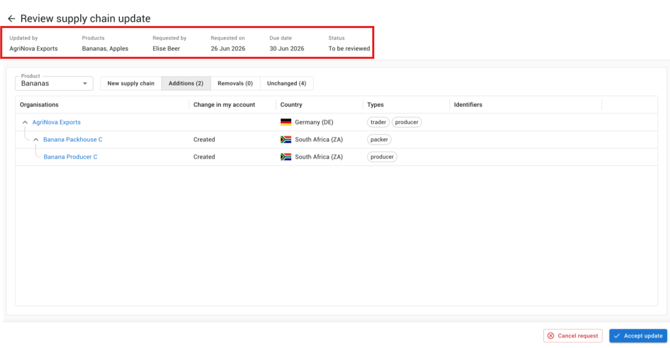
At the top, you'll see the request details: who submitted the update, which products it covers, and the due date. Use the **Product** dropdown to switch between products if the request covers more than one.
The review screen is organised into four tabs:
- **New supply chain** — the full updated supply chain as your supplier has submitted it
- **Additions** — organisations that have been added and will be created in your account
- **Removals** — organisations that are no longer in the supplier's supply chain
- **Unchanged** — organisations that remain exactly as they were
- **Different details** — organisations where the supplier's data differs from what you have in your account. These don't need to be resolved before you can accept the update
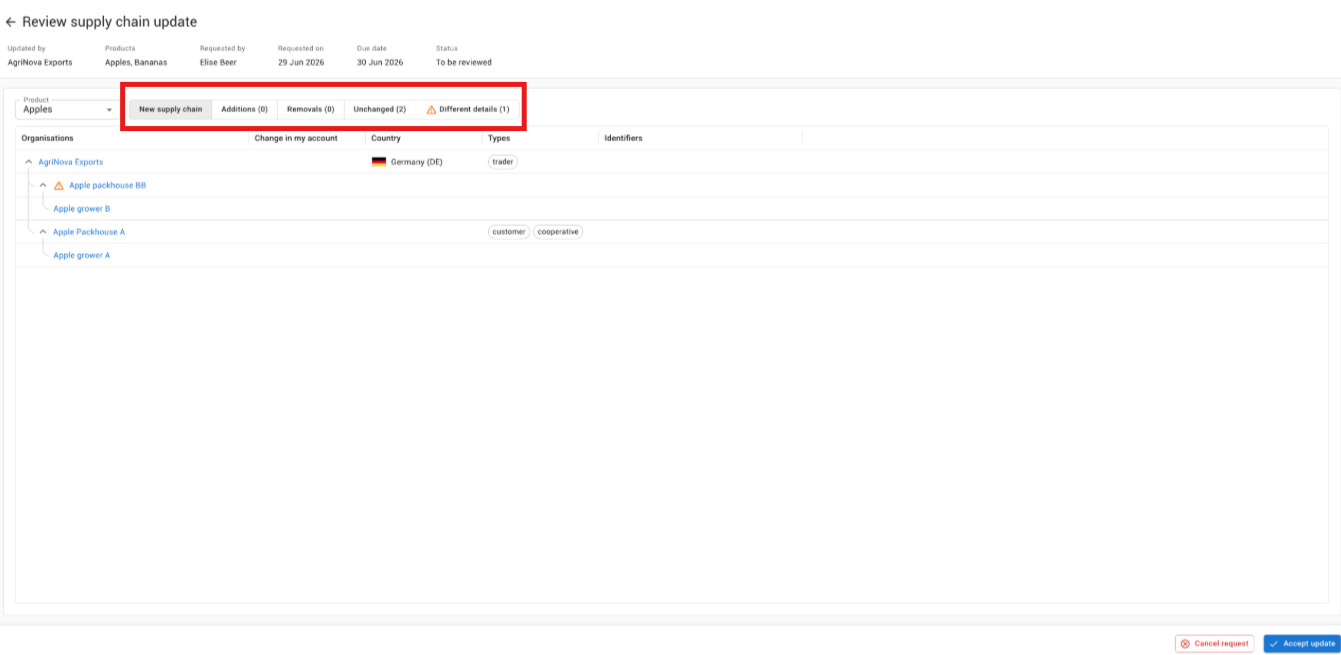
Each organisation shows its name, what will change in your account (e.g. "Created"), country, type, and any identifiers.
#### 3. Check for flags
Simvia automatically highlights anything that needs your attention:
- **New organisations** — shown with "Created" in the change column, so you can verify them before accepting
- **Blocked organisations** — if a supplier has included an organisation you've previously blocked, it will be flagged for your review
- **Removals** — organisations not included in the updated supply chain will be automatically deactivated in your account (not deleted)
#### 4. Accept or cancel the update
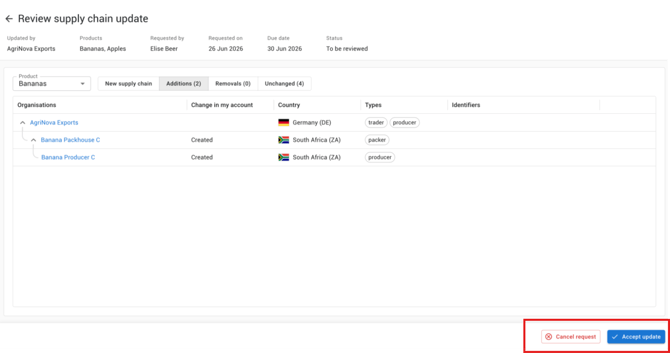
Once you're satisfied with the update, click **Accept update** in the bottom right. The changes will be applied to your supply chain immediately.
If something looks wrong, you can click **Cancel request** to reject the update and follow up with your supplier directly.
---
### What happens after you accept
- New organisations are added to your supply chain and activated
- Organisations not included in the update are automatically **deactivated** (they remain in your account but are no longer part of the active supply chain)
- The request status changes to **Completed**
- [Getting Started](https://helpcenter.simvia.com/knowledge-base/getting-started?hsLang=en#main-content)
- [About Simvia](https://helpcenter.simvia.com/knowledge-base/getting-started?hsLang=en#about-simvia)
- [Navigating the Platform](https://helpcenter.simvia.com/knowledge-base/getting-started?hsLang=en#navigating-the-platform)
- [Account & Access](https://helpcenter.simvia.com/knowledge-base/getting-started?hsLang=en#account-access)
- [Supply Chain Approval (SCA)](https://helpcenter.simvia.com/knowledge-base/supply-chain-approval-sca?hsLang=en#main-content)
- [Dashboard](https://helpcenter.simvia.com/knowledge-base/supply-chain-approval-sca?hsLang=en#dashboard)
- [Compliance Overview](https://helpcenter.simvia.com/knowledge-base/supply-chain-approval-sca?hsLang=en#compliance-overview)
- [Organisations](https://helpcenter.simvia.com/knowledge-base/supply-chain-approval-sca?hsLang=en#organisations)
- [Products](https://helpcenter.simvia.com/knowledge-base/supply-chain-approval-sca?hsLang=en#products)
- [Requests](https://helpcenter.simvia.com/knowledge-base/supply-chain-approval-sca?hsLang=en#requests)
- [Documents](https://helpcenter.simvia.com/knowledge-base/supply-chain-approval-sca?hsLang=en#documents)
- [Requirements](https://helpcenter.simvia.com/knowledge-base/supply-chain-approval-sca?hsLang=en#requirements)
- [PPWR](https://helpcenter.simvia.com/knowledge-base/ppwr?hsLang=en)
- [Sustainability Risk Assessment (SRA)](https://helpcenter.simvia.com/knowledge-base/sustainability-risk-assessment-sra?hsLang=en)
- [Connections](https://helpcenter.simvia.com/knowledge-base/connections?hsLang=en#main-content)
- [Certification Databases](https://helpcenter.simvia.com/knowledge-base/connections?hsLang=en#certification-databases)
- [Laboratory Integrations](https://helpcenter.simvia.com/knowledge-base/connections?hsLang=en#laboratory-integrations)
- [Updates](https://helpcenter.simvia.com/knowledge-base/updates?hsLang=en#main-content)
- [Release Notes 2026](https://helpcenter.simvia.com/knowledge-base/updates?hsLang=en#release-notes-2026)
- [Release Notes 2025](https://helpcenter.simvia.com/knowledge-base/updates?hsLang=en#release-notes-2025)
[](https://www.simvia.com/)
Copyright © 2026, Simvia