
Sometimes you don't want Simvia to keep chasing a supplier for a document — for example, if the requirement no longer applies, or you need to pause things for a while. You can suspend a requirement at any time by clicking Suspend in the request. Here's how.
Before you start
Suspending a requirement stops all reminders and request emails for that supplier and document. Once suspended, no new requests will be created for that requirement — temporarily or permanently, depending on what you choose.
Good to know: if a requirement rule is updated while a requirement isn't yet fulfilled, the supplier may still receive a new automatic document request. This happens once the rule becomes active or is reactivated, regardless of the suspension.
Steps
There are three ways to suspend a requirement — use whichever fits how you're already working.
Option 1: Via Outgoing Requests
- Go to Outgoing Requests and search for the supplier's name.
- Click on the relevant open request.
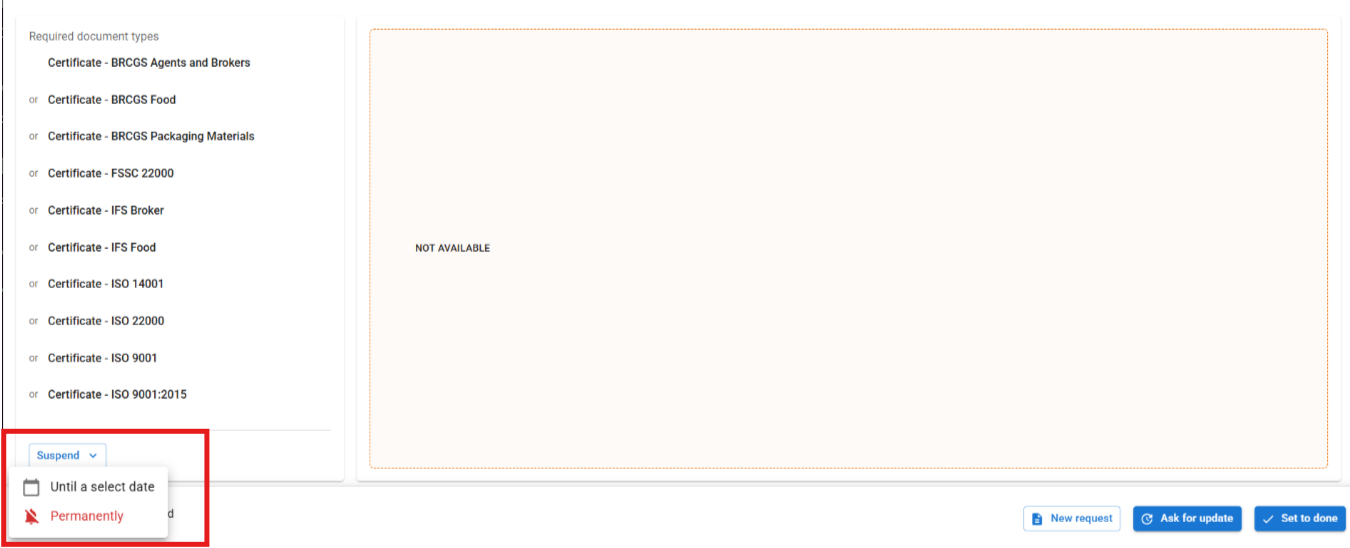
- A new window opens showing the requirement details. Scroll down — below the list of certificates on the left, you'll find the Suspend option.
Option 2: Via Organisation Details
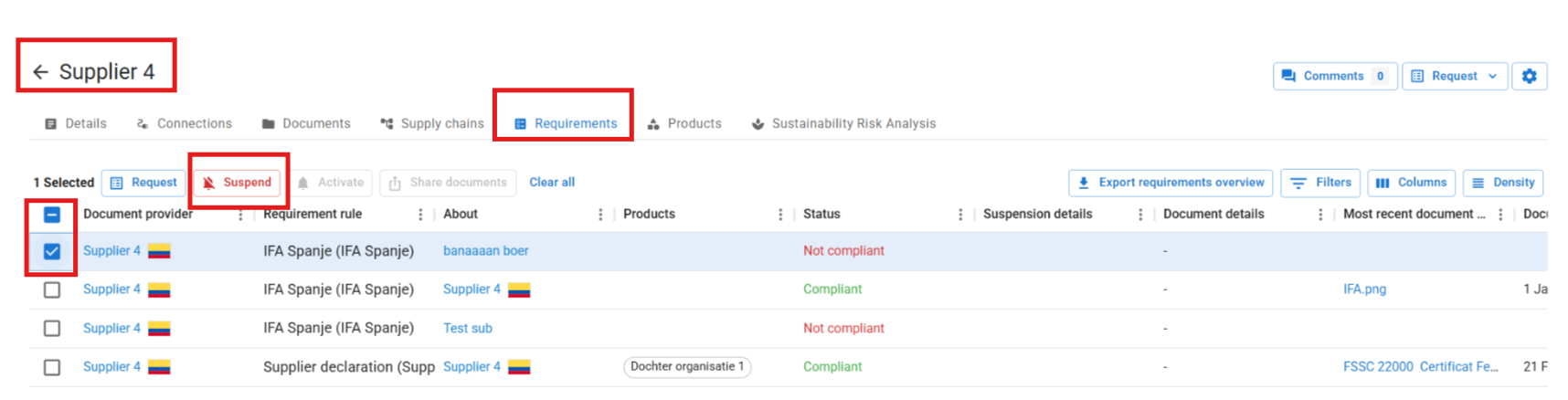
- Go to the organisation.
- Open the Requirements tab.
- Select the relevant document.
- You'll find the option to Suspend the requirement here as well.
Option 3: Via All Requirements
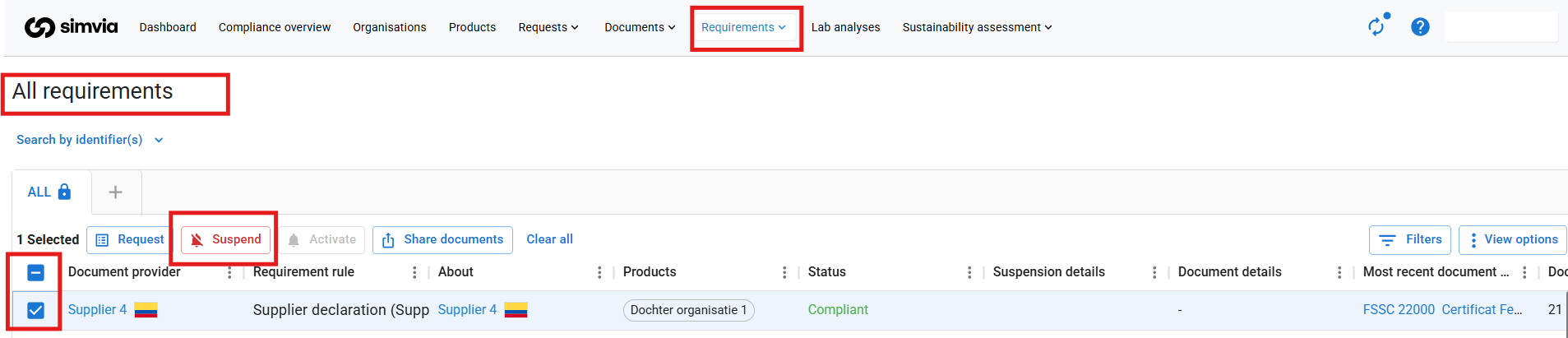
- Go to Requirements → All Requirements.
- Filter by supplier name, and add a filter for the required document type. Only the missing documents will be shown.
- Select the document and set it to Suspend.
Temporary or permanent suspension
When you suspend a requirement, you choose how long it should stay that way:
- Temporary suspension — the request automatically reactivates on the date you select.
- Permanent suspension — no future requests will be created for that requirement, until you manually reactivate it.
Good to know
- Suspended requirements don't send reminders while suspended.
- If you deactivate a rule, any suspended requirements stay in place — deactivation only affects future requests.
- Suspended requirements don't automatically carry over to a new rule. You'll need to check and handle them manually if a rule changes.