
Once your account is set up and your first document requests have been sent, your daily workflow focuses on monitoring responses, reviewing documents, and keeping your dashboard clear.
This article explains what happens after requests are sent and how to manage everything from your dashboard.
Your dashboard as your control centre
Your dashboard shows all actions that require your attention. Keeping this overview clean helps you avoid missed requests, delays, or outdated information.
To clear notifications, regularly review each section and take action where needed.
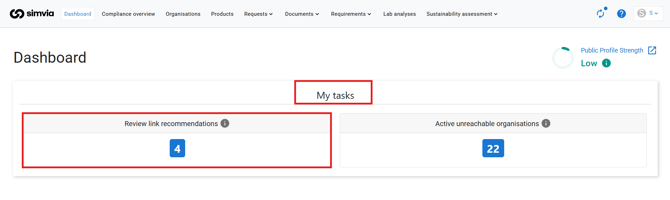
My tasks
Organisation linking
Linking organisations improves collaboration with buyers and suppliers.
When organisations are linked:
- Public documents are shared automatically
- Organisation details such as name, identifiers, and contacts stay in sync
- Manual updates and duplicate organisations are avoided
Review link recommendations whenever they appear and confirm relevant links.
Incoming requests to be completed
This section shows requests where buyers or suppliers are asking you to provide quality information or documents.
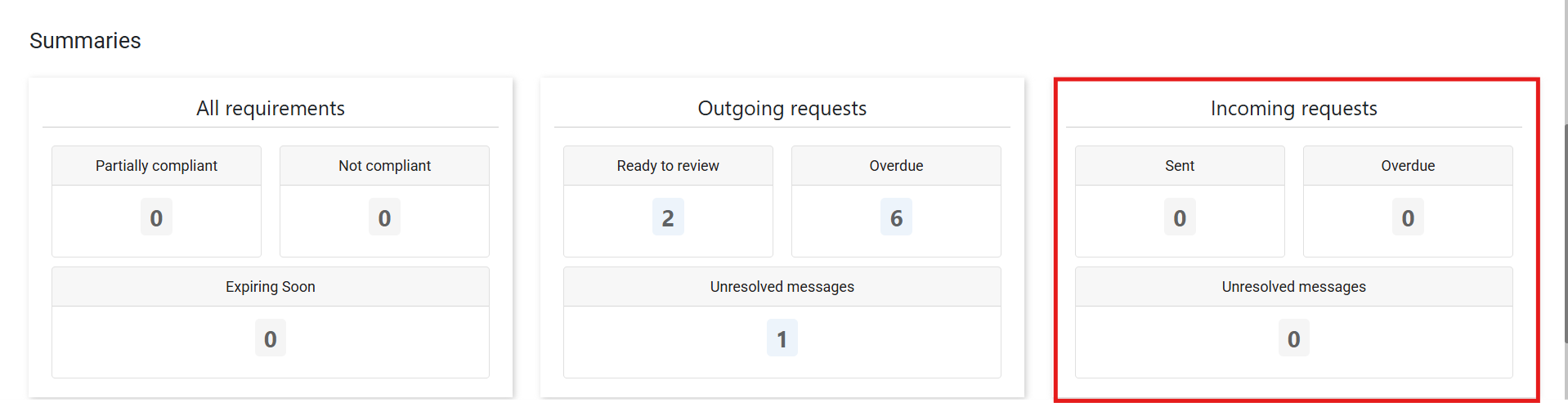
Action required:
- Open the request
- Upload the required documents or information
- Submit the request before the due date
Completing these requests helps keep your account up to date and prevents follow-up messages.
Outgoing requests ready to review
Once your suppliers respond to document requests, these appear on your dashboard under Outgoing requests – ready to review.
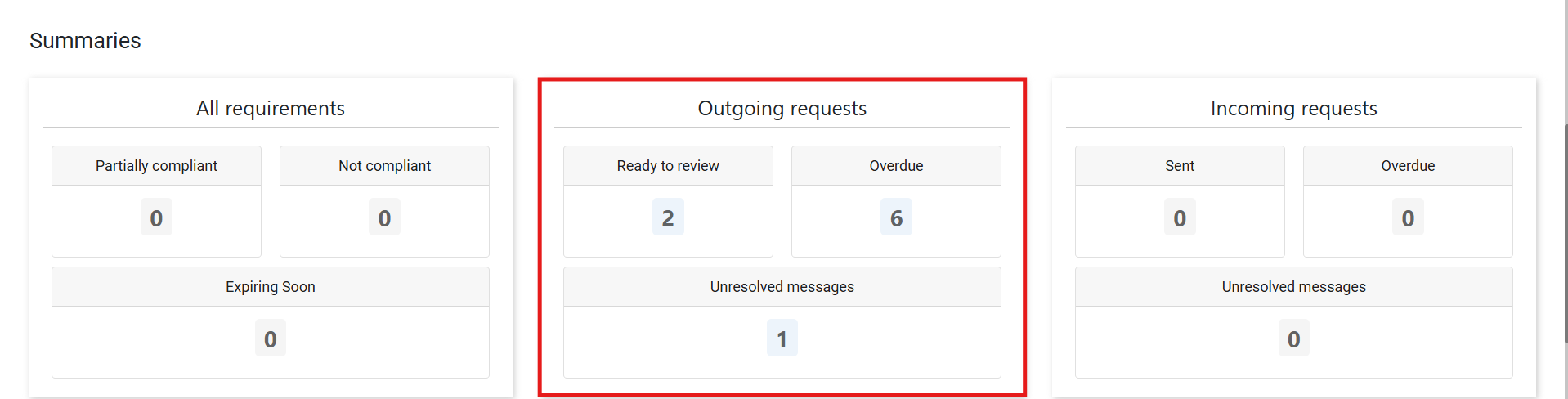
This indicates that documents are waiting for your approval.
Reviewing supplier responses
Clicking Ready to review takes you directly to the relevant requests.
Important to know:
- Submitted documents are not added to your account automatically
- You must review and accept them first
Reviewing a document
Open the request and select the document to review it.
During review, you can:
- Open and check the document
- Verify document details, including the expiry date
- Correct the expiry date if it is missing or incorrect
If the document is correct, accept it and mark the request as done.
The accepted document is then automatically added to your Supplier Documents page.
Rejecting a document or requesting an update
If the document is incorrect or incomplete:
- Reject the document
- Ask for an update to resend the request to the supplier
This keeps the request active without manual follow-up outside the platform.
Documents available later
If a supplier indicates that a document will be available at a later date:
- Suspend the requirement until the indicated date
The request will automatically be sent again when the document is expected to be available.
Understanding “overdue” requests
Requests move to Overdue when:
- They are older than two weeks
- No documents have been added
- No reminders are sent anymore
This prevents suppliers from receiving repeated reminder emails.
Overdue requests are a signal that action is needed from your side.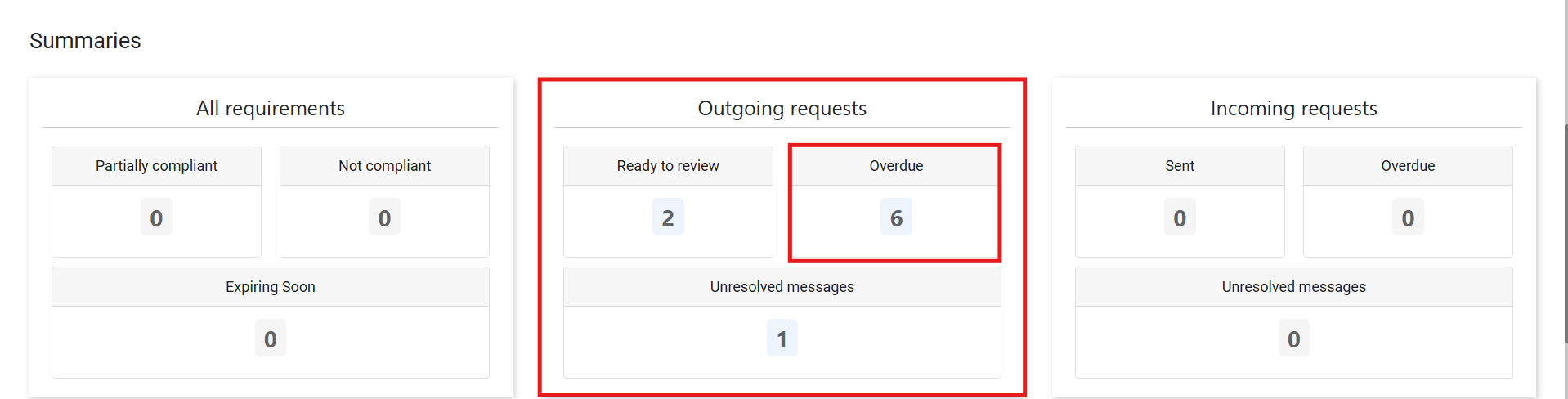
Common reasons include:
- You no longer work with the supplier
- The email address is incorrect
- The request is no longer relevant
Always check the email status column to see if messages are bouncing.
Cleaning up no progress requests
After reviewing no progress requests:
- Cancel the outdated requests
New and relevant requests will automatically be sent again by the system at 00:00.
This is important because:
- The originally requested documents may no longer be relevant
- You may already have received the documents outside the platform
- It keeps your dashboard and request list clean
Unresolved messages
Unresolved messages are open conversations between you and the requesting party.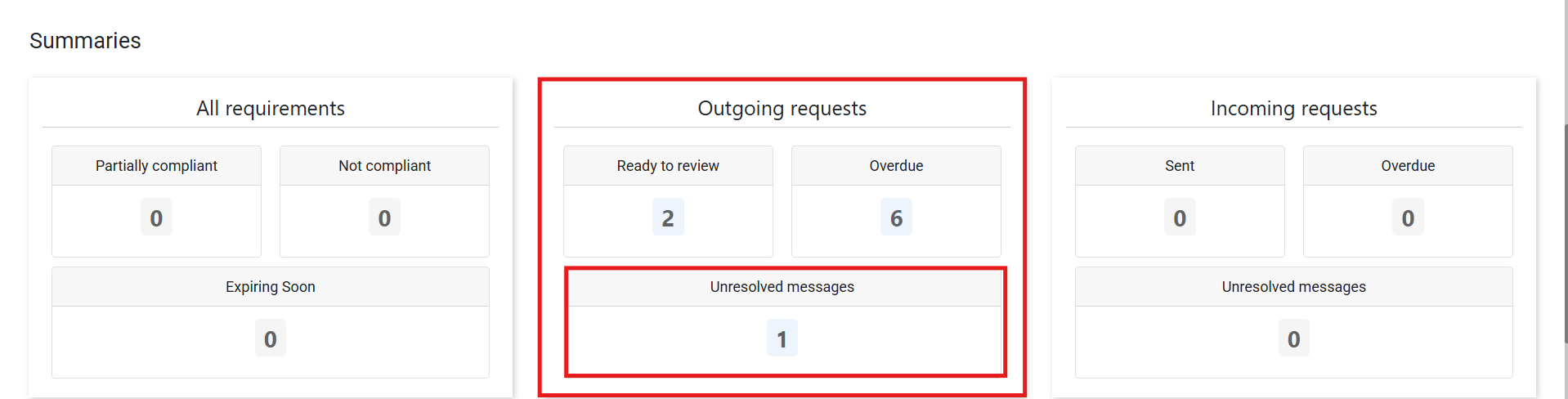
To clear them:
- Open the message
- Reply or confirm next steps
- Resolve the conversation once it is clear
Unresolved messages often block progress, so addressing them helps close requests faster.
Recommended routine
To keep your account clean and manageable:
- Check your dashboard at least once a week
- Review and clear outgoing requests ready to review
- Follow up on overdue requests
- Resolve messages promptly
- Confirm organisation links when suggested
Following this routine ensures your dashboard stays clear and your document flow runs smoothly.