
The Team members tab allows you to manage users and their roles within your company account. From here, you can invite colleagues, assign permissions, and control access to your organisation.
You can access Team members by going to Account settings → Team members.

Managing user access ensures that each team member has the appropriate level of responsibility and visibility within the platform.
Overview
The Team members page contains three tabs:
-
Active
-
Pending invites
-
Pending requests
Active
The Active tab shows all users who currently have access to your account.
For each user, you can see:
-
Name and email address
-
Assigned role
-
Available actions
Roles
Roles determine what a user can manage within the account.
Owner
Full access to all company settings, integrations, and user management. Only Owners can manage other Owners.
Admin
Can manage most operational settings and users but may have limited access to certain company-level configurations.
Member / User
Operational access to work within the platform but without control over account-level settings.
Users with sufficient permissions can adjust a user’s role if needed.
Pending invites
The Pending invites tab shows invitations that have been sent but not yet accepted.
From here, you can:
-
Resend an invitation
-
Cancel an invitation
Once the invited user accepts the invitation, they will appear in the Active tab.
Pending requests
If someone requests access to your account, their request will appear under Pending requests.
You can:
-
Approve the request and assign a role
-
Reject the request
This ensures full control over who gains access to your company account.
Inviting a team member
To invite a new user:
-
Click Invite
-
Enter the email address
-
Assign the appropriate role
-
Send the invitation
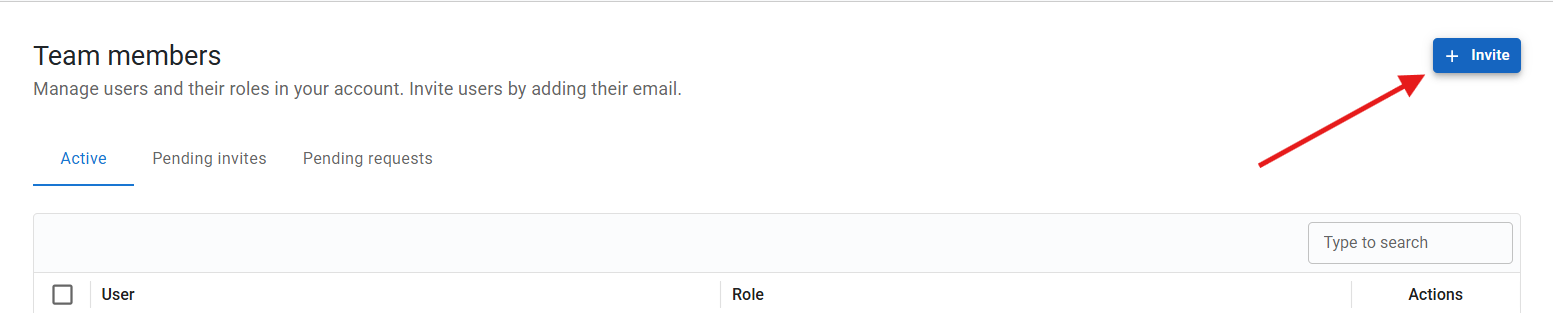
The user will receive an email to activate their account.
Removing access
If a user no longer needs access, you can remove them from the Active tab. Removing a user immediately revokes their access to your company account.
Best practices
To maintain secure and organised user access:
-
Limit Owner access to key account managers
-
Assign roles based on responsibility
-
Regularly review active users
-
Remove access for former employees or external partners
Proper user management helps maintain security, accountability, and smooth collaboration within your organisation.