---
title: Managing your Company Accounts
description: Learn how to manage multiple company accounts, switch between organisations, control request routing, and manage your account roles.
---
[Skip to content](https://helpcenter.simvia.com/knowledge-base/managing-your-company-accounts#main-content)
English
Show submenu for translations
[](https://helpcenter.simvia.com/knowledge-base?hsLang=en)
Open main navigation
Close main navigation
- English
Show submenu for translations
This is a search field with an auto-suggest feature attached.
- There are no suggestions because the search field is empty.
1. [Help Center](https://helpcenter.simvia.com/knowledge-base?hsLang=en)
2. [Getting Started](https://helpcenter.simvia.com/knowledge-base/getting-started?hsLang=en)
3. [Account & Access](https://helpcenter.simvia.com/knowledge-base/getting-started?hsLang=en#account-access)
# Managing your Company Accounts
### Managing your company accounts
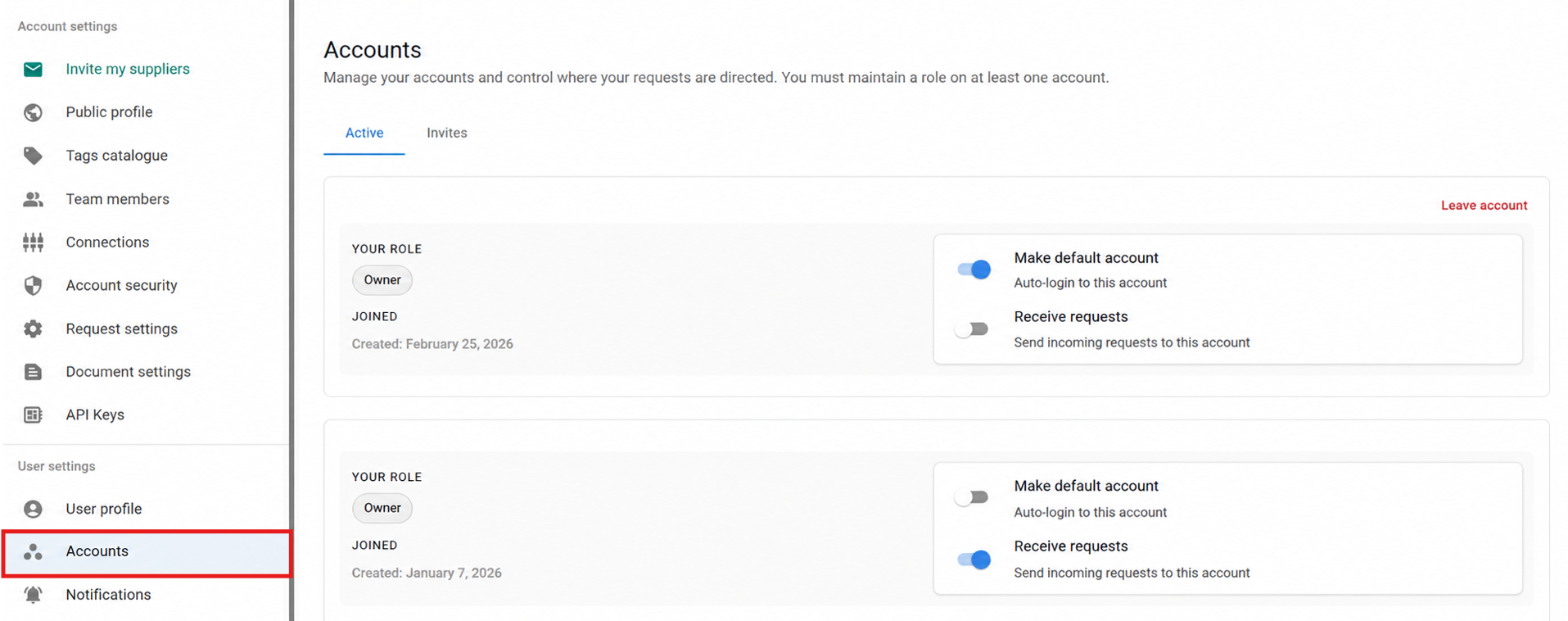
The **Accounts** tab allows you to manage and switch between multiple company accounts. If you are connected to more than one organisation, this is where you control your role, request routing, and account access.
You can access this section from **User settings → Accounts**.
You must maintain a role in **at least one account** at all times.
---
#### Switching between accounts
If you are connected to multiple company accounts, you can switch between them at any time.
To switch accounts:
1. Click the **account selector** in the top-right corner of the platform
2. Select the company account you want to access
Once switched, all data such as your **Dashboard, organisations, documents, and requirements** will reflect the selected account.
Switching accounts does **not** affect your roles or permissions. These are defined separately for each account.
---
#### Active accounts
The **Active** tab shows all company accounts you currently have access to.
For each account, you can see:
- Your assigned **role** (Owner, Admin, Member)
- The date you joined
- Request routing settings
### Roles
Your permissions are defined per account. For example, you may be an **Owner** in one account and a **Member** in another.
---
#### Request routing
Under each account, you can manage whether incoming document requests are directed to that account.
### Receive requests
When enabled:
- Incoming document requests will be routed to this account.
When disabled:
- Incoming requests will not be sent to this account.
This is useful if you work across multiple organisations but want requests handled within only one specific account.
---
#### Leaving an account
If you are the **only Owner** of an account, you cannot leave it.
To leave an account:
1. Assign another user as **Owner**
2. Then use the **leave account** option
This ensures that every company account always has at least one Owner responsible for management.
---
#### Invites
The **Invites** tab shows invitations to join additional company accounts.
You can:
- Accept an invitation
- Decline an invitation
Once accepted, the account will appear under **Active accounts** and can be accessed through the account switcher.
---
#### Best practices
- Review which company accounts you are connected to regularly
- Check **request routing** when working across multiple organisations
- Ensure each account has at least one **Owner**
The Accounts tab gives you full control over your access and responsibilities across different company accounts.
- [Getting Started](https://helpcenter.simvia.com/knowledge-base/getting-started?hsLang=en#main-content)
- [About Simvia](https://helpcenter.simvia.com/knowledge-base/getting-started?hsLang=en#about-simvia)
- [Navigating the Platform](https://helpcenter.simvia.com/knowledge-base/getting-started?hsLang=en#navigating-the-platform)
- [Account & Access](https://helpcenter.simvia.com/knowledge-base/getting-started?hsLang=en#account-access)
- [Supply Chain Approval (SCA)](https://helpcenter.simvia.com/knowledge-base/supply-chain-approval-sca?hsLang=en#main-content)
- [Dashboard](https://helpcenter.simvia.com/knowledge-base/supply-chain-approval-sca?hsLang=en#dashboard)
- [Compliance Overview](https://helpcenter.simvia.com/knowledge-base/supply-chain-approval-sca?hsLang=en#compliance-overview)
- [Organisations](https://helpcenter.simvia.com/knowledge-base/supply-chain-approval-sca?hsLang=en#organisations)
- [Products](https://helpcenter.simvia.com/knowledge-base/supply-chain-approval-sca?hsLang=en#products)
- [Requests](https://helpcenter.simvia.com/knowledge-base/supply-chain-approval-sca?hsLang=en#requests)
- [Documents](https://helpcenter.simvia.com/knowledge-base/supply-chain-approval-sca?hsLang=en#documents)
- [Requirements](https://helpcenter.simvia.com/knowledge-base/supply-chain-approval-sca?hsLang=en#requirements)
- [PPWR](https://helpcenter.simvia.com/knowledge-base/ppwr?hsLang=en)
- [Sustainability Risk Assessment (SRA)](https://helpcenter.simvia.com/knowledge-base/sustainability-risk-assessment-sra?hsLang=en)
- [Connections](https://helpcenter.simvia.com/knowledge-base/connections?hsLang=en#main-content)
- [Certification Databases](https://helpcenter.simvia.com/knowledge-base/connections?hsLang=en#certification-databases)
- [Laboratory Integrations](https://helpcenter.simvia.com/knowledge-base/connections?hsLang=en#laboratory-integrations)
- [Updates](https://helpcenter.simvia.com/knowledge-base/updates?hsLang=en#main-content)
- [Release Notes 2026](https://helpcenter.simvia.com/knowledge-base/updates?hsLang=en#release-notes-2026)
- [Release Notes 2025](https://helpcenter.simvia.com/knowledge-base/updates?hsLang=en#release-notes-2025)
[](https://www.simvia.com/)
Copyright © 2026, Simvia