
Every request you send to a supplier in Simvia carries a status. It tells you exactly where things stand, so you always know whether the ball is in your court or your supplier's, without opening the request itself.
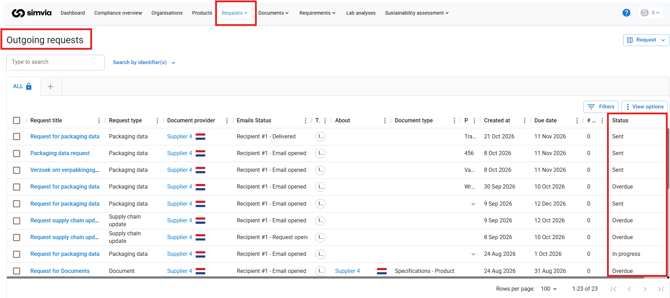
You'll find these statuses in Outgoing Requests, in the Status column, and you can filter by one or more of them to focus on exactly the requests that need your attention.
The statuses explained
Sent — The request has been sent, and your supplier hasn't started providing information yet. While a request is Sent, the Emails Status column shows exactly where things stand: Delivered (the email reached your supplier), Email opened, Request opened (they've opened the request itself), or Hindered (your supplier has unsubscribed from Simvia's emails, so reminders won't reach them).
Overdue — An Overdue request that hasn't moved forward. Once the request passes its due date without your supplier engaging, Simvia escalates it to Overdue to flag that it needs a decision from you.
In progress — Your supplier has started responding: at least one of the requested documents has been submitted, but the request isn't complete yet.
Ready to review — Your supplier has submitted everything. It's now on you: open the request and accept or reject the documents.
Done — You've reviewed and accepted the documents. The request is fulfilled and no further action is needed from either side.
Cancelled — Usually applied to a request that had No progress, where you've decided to cancel rather than keep chasing. This isn't a dead end: cancelling tells Simvia to check which documents are still missing and automatically send your supplier a new request for exactly those. You don't need to manually follow up and re-send — Simvia handles that for you.
How a request typically moves
Most requests follow this path:
Sent → In progress → Ready to review → Done
If a supplier doesn't respond before the due date, a request moves from Sent to Overdue instead. From there, you decide: wait a little longer, follow up directly, or cancel it and let Simvia automatically re-request the missing documents.
Good to know
- Filtering by Status lets you quickly find, for example, everything sitting in Ready to review, so you can clear your review queue in one go.
- Your Dashboard has a dedicated Outgoing Requests section, with Ready to review as its own mini-section — a quick way to spot requests waiting on you without going into Outgoing Requests at all.
- The Emails Status column only applies while a request is Sent — once your supplier starts submitting documents, the request moves to In progress and email tracking is no longer the relevant signal.
- Cancelling an Overdue request doesn't mean giving up on the missing document. Simvia keeps working on it behind the scenes by generating a new request automatically.