
The Compliance Overview helps you monitor document compliance across your supply chain based on your requirement rules.
It allows you to quickly identify which suppliers meet your requirements and which documents require attention.
Required documents view
The Required documents view combines organisations with the document statuses generated by your requirement rules.
Each status provides a clear indication of document compliance.
Status indicators
The overview uses different statuses to indicate document availability.
-
Valid – Required documents are available and up to date
-
Expiring soon – Documents will expire soon
-
Missing – No document is available for the requirement
-
Expired – The document is no longer valid
Hovering over a status provides additional information about the requirement and related documents.
Slashes or dashes in the overview indicate that no documents exist for that requirement category.
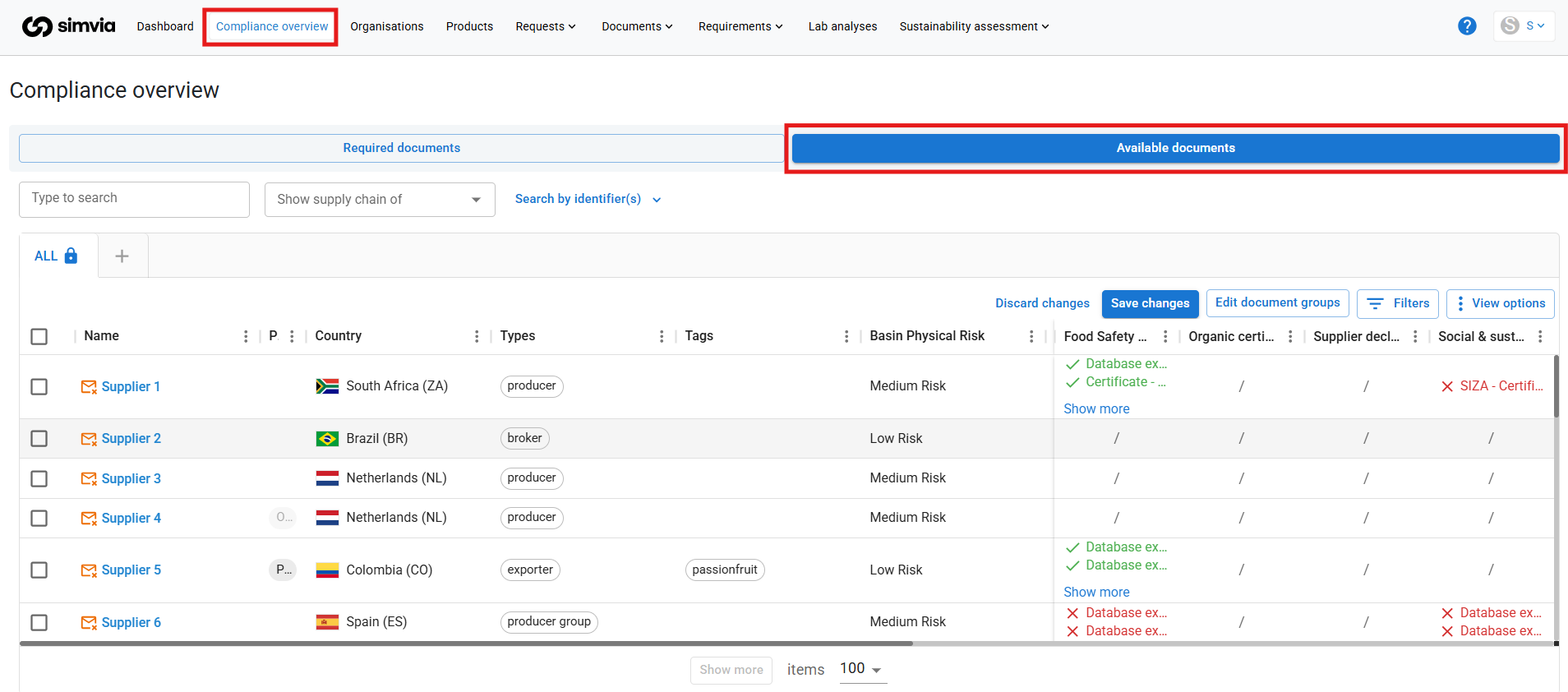
Available documents view
The Available documents view allows you to review documents stored for a specific organisation.
This view shows all documents associated with the organisation, regardless of whether they are linked to a requirement rule.
This can help you verify document details such as document type or expiry date.
Understanding colours and symbols
Colours help you quickly interpret document compliance.
-
Green indicates valid documents
-
Grey indicates documents that are expiring soon
-
Orange indicates missing documents
-
Red indicates expired documents
These visual indicators help you quickly identify areas that require attention.
Customising the overview
You can customise the Compliance Overview to match your internal compliance structure.
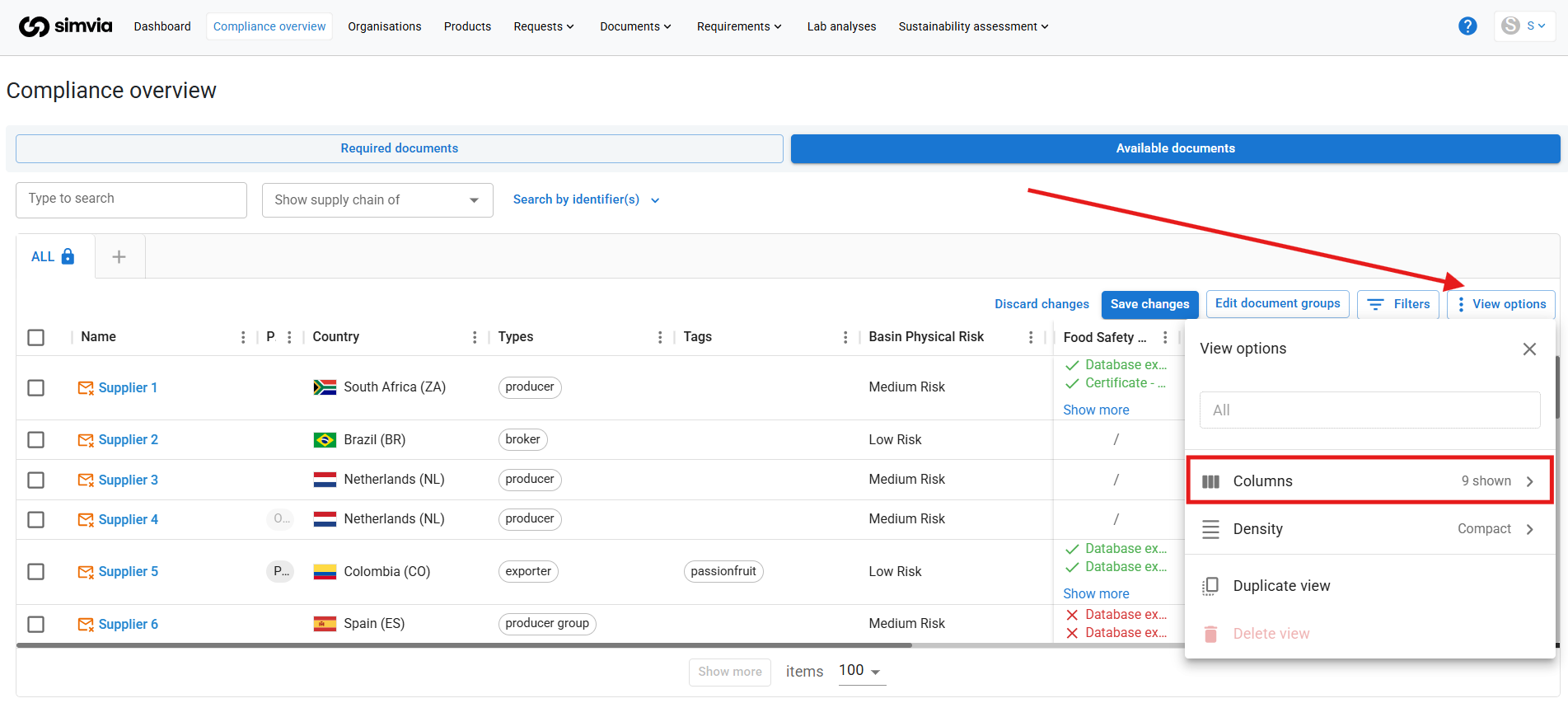
Managing columns
Use View options → Columns to:
-
Add requirement rule columns
-
Remove columns that are not relevant
-
Adjust the overview to your compliance framework
Renaming categories
Column headers can be renamed to match your internal terminology.
For example, a category such as Food Safety Certification can be renamed to reflect your internal standards.
You can also add or remove document types within a category to refine compliance checks.
Best practices
To use the Compliance Overview effectively:
-
Review the overview regularly
-
Use colour indicators to prioritise actions
-
Check expiring documents before they expire
-
Adjust columns to match your compliance structure
Maintaining this overview helps ensure supplier documentation remains accurate and compliant.