---
title: Using Filters and Columns to Customise Your Overview
description: Learn how to use filters and columns to customise overview pages such as Organisations, Requirements, and Documents so you can quickly find and organise the information you need.
---
[Skip to content](https://helpcenter.simvia.com/knowledge-base/using-filters-and-columns-to-customise-your-overview#main-content)
English
Show submenu for translations
[](https://helpcenter.simvia.com/knowledge-base?hsLang=en)
Open main navigation
Close main navigation
- English
Show submenu for translations
This is a search field with an auto-suggest feature attached.
- There are no suggestions because the search field is empty.
1. [Help Center](https://helpcenter.simvia.com/knowledge-base?hsLang=en)
2. [Supply Chain Approval (SCA)](https://helpcenter.simvia.com/knowledge-base/supply-chain-approval-sca?hsLang=en)
3. [Organisations](https://helpcenter.simvia.com/knowledge-base/supply-chain-approval-sca?hsLang=en#organisations)
# Using Filters and Columns to Customise Your Overview
Filters and columns help you customise your overview pages (such as Organisations, Requirements, Documents, etc.) so you can quickly find the information you need.
#### Using Filters
Filters consist of three components:
1. **Column** – The category you want to filter on (e.g. Country, Status, Type).
2. **Operator** – How the filter should behave (e.g. contains, equals, excludes).
3. **Value** – The specific value within the column you want to filter by.
### 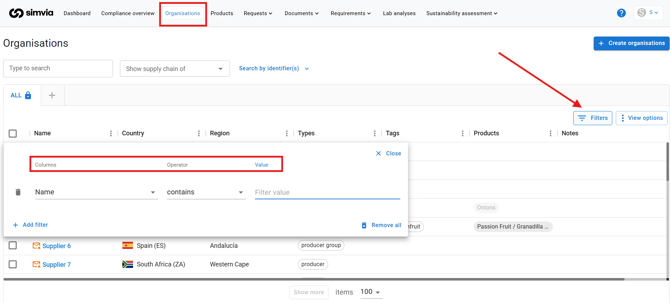 Example
- Column: **Country**
- Operator: **Contains**
- Value: **Spain**
Result: The system will only show organisations located in Spain.
You can add multiple filters to refine your search further. To remove all active filters at once, click **CLEAR ALL FILTERS**.
---
#### Special Columns Explained
Some columns may need additional clarification:
### Water Risk (WRF)
WRF stands for **Water Risk Filter**, a tool developed by WWF (World Wildlife Fund). It helps assess water-related risks in specific regions and is used for sustainability and compliance insights.
### Types
This column allows you to filter by **organisation type**, such as:
Raw material supplier, production location, processor, importer, exporter, broker, trader, retailer, warehouse, laboratory, producer group, cooperative, transport, packaging supplier, and more.
### Products
The Products column shows which products are linked to an organisation.
- **Portfolio** appears when a product is added to your Product Portfolio.
- **PPM** stands for **Plant Propagation Material**. This comes directly from the GLOBALG.A.P. product list and distinguishes between regular products and propagation materials.
### Country Groups
Country groups allow you to filter based on predefined country classifications (for example, risk-based groupings). These classifications are updated regularly.
---
#### Using Columns
Columns allow you to control which information is visible in your table view.
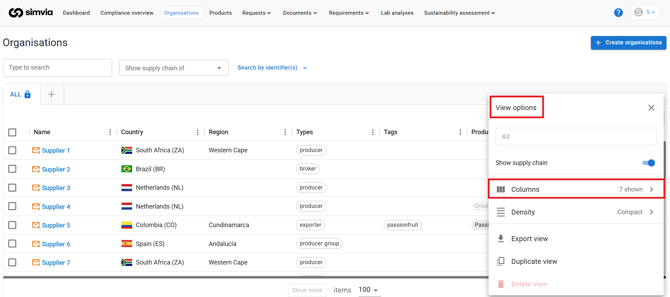
You can:
- Show or hide specific columns
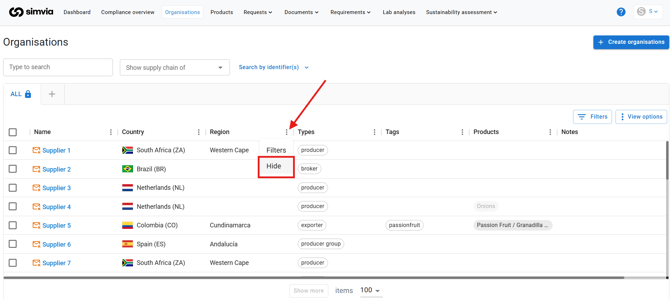
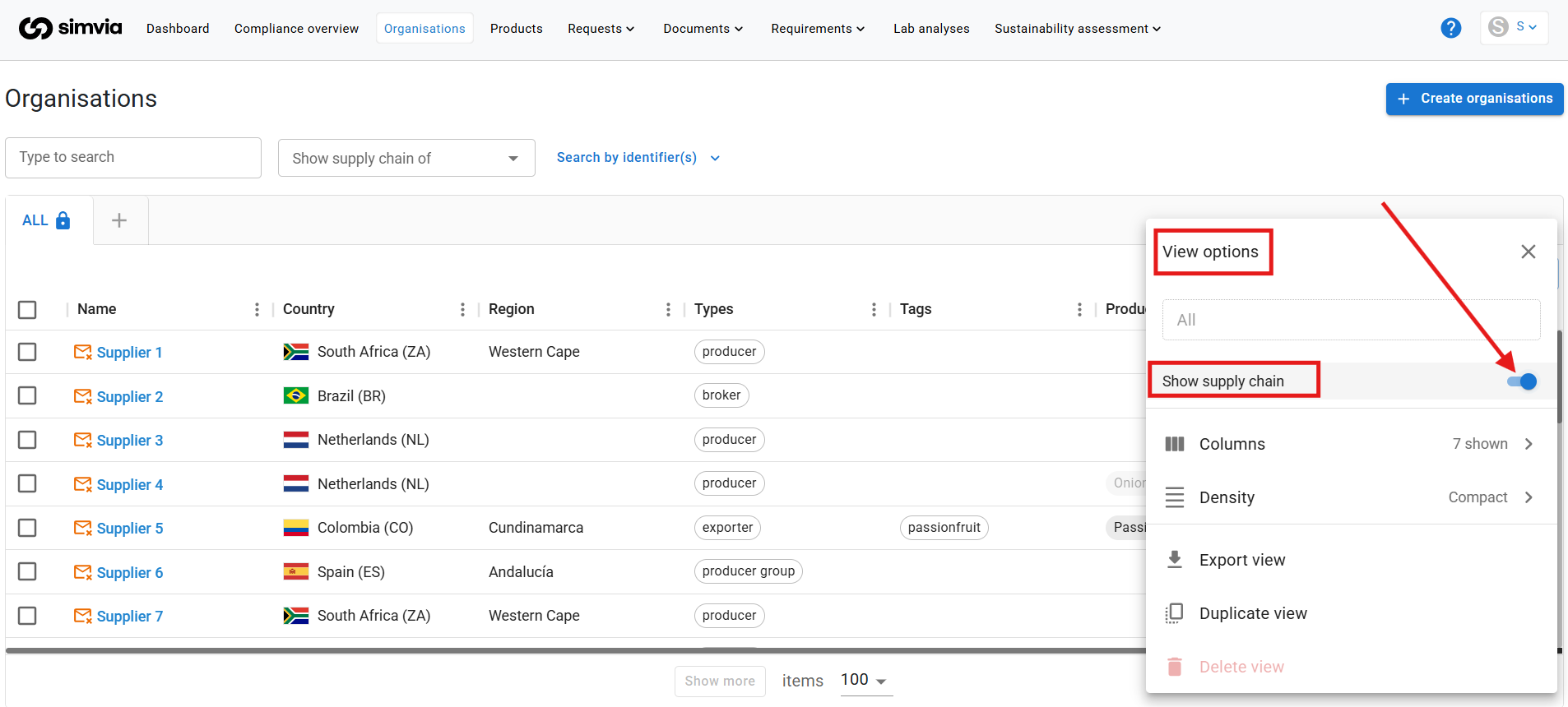
- Rearrange your overview for better clarity by first toggling off the **Supply Chain** option in **View Options**, then drag and drop columns directly from the column headers.
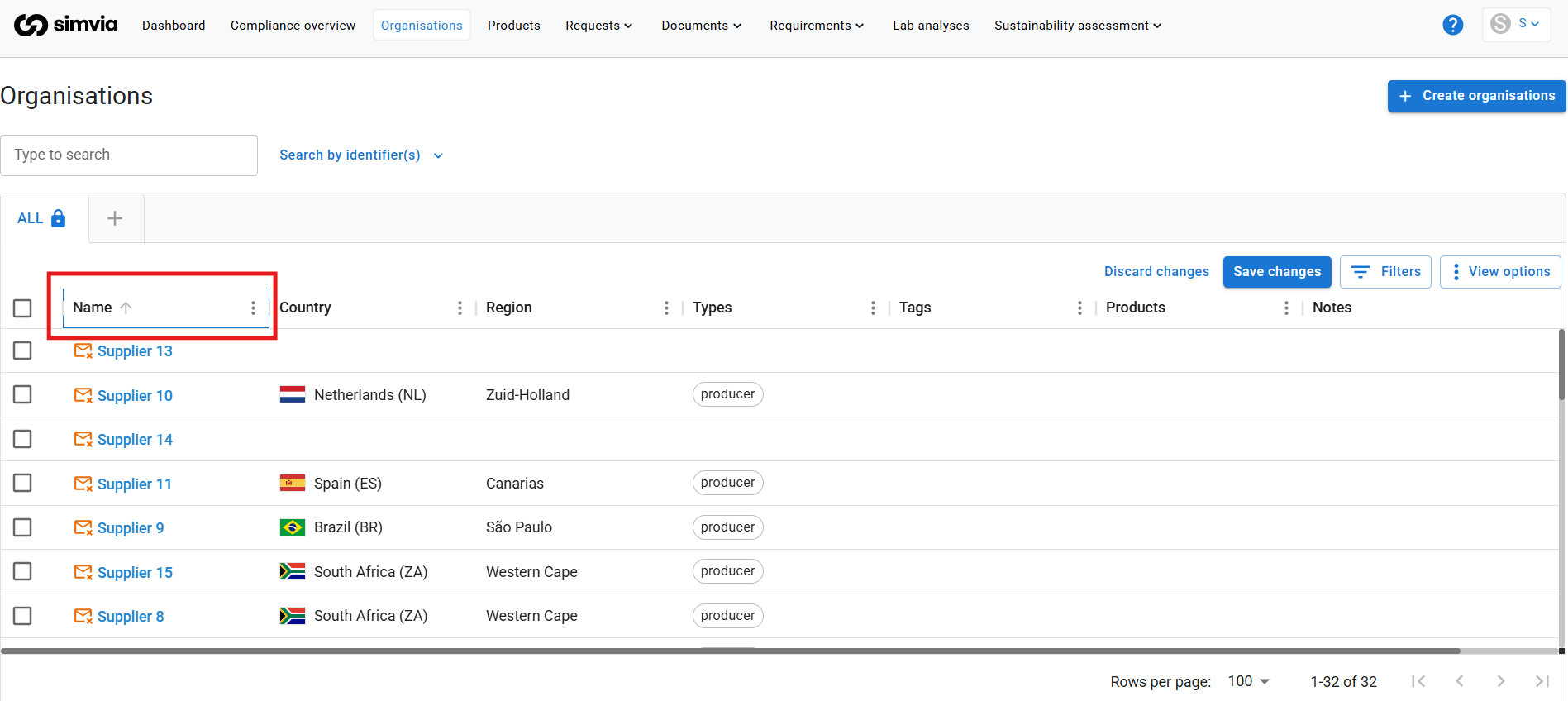
- Focus only on the data that is relevant to your workflow.
### Important
We recommend keeping the **checkbox selection column** enabled. This allows you to perform bulk actions.
---
#### Bulk Actions
By selecting one or more items using the checkbox column, you can perform actions such as:
- Send manual requests
- Add or remove products
- Add or remove tags
- Activate or deactivate organisations
- Block or unblock organisations
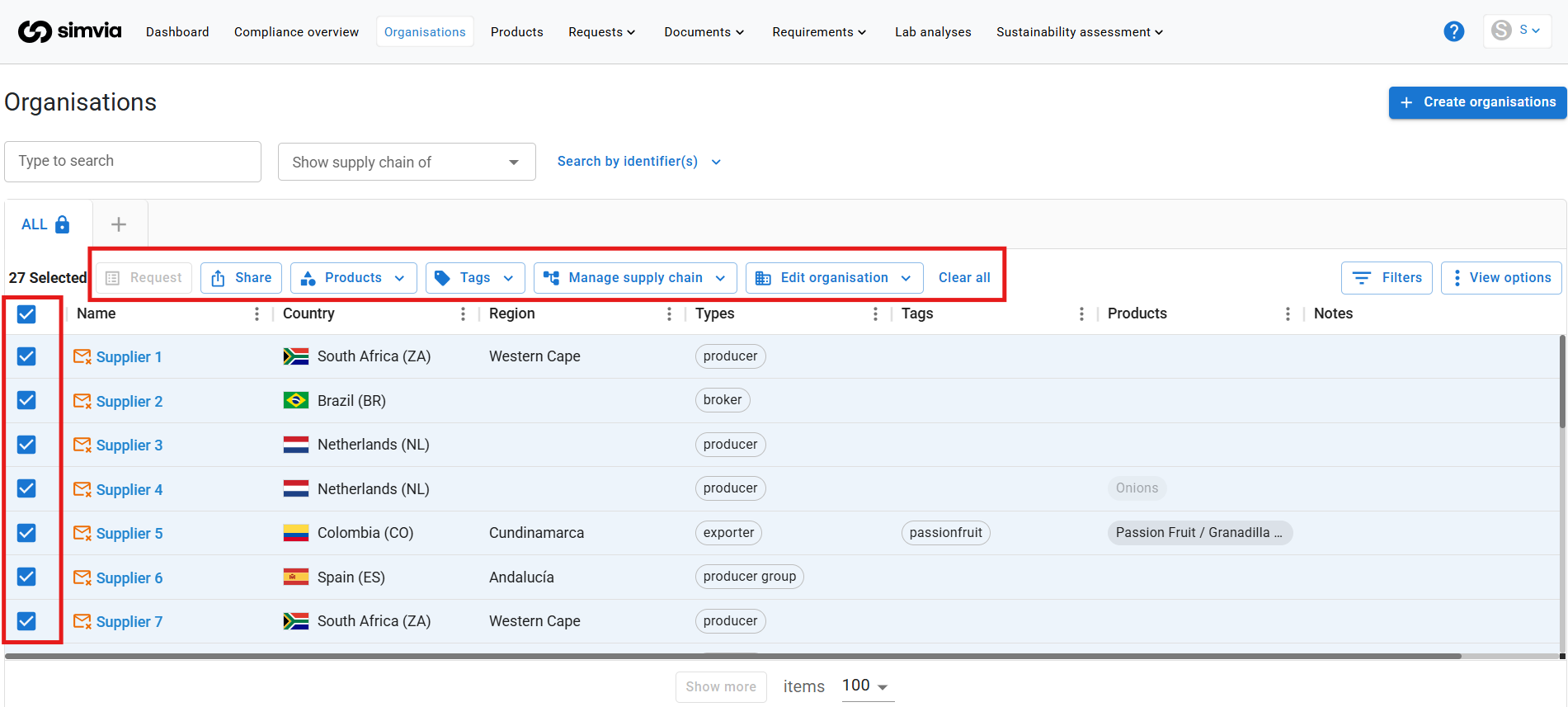
Some actions may be unavailable depending on the status of the selected items. For example:
- You cannot send a request if no contact email is available.
- You cannot activate an organisation that is not deactivated.
To cancel your selection and exit bulk mode, click **CLEAR ALL**.
---
Using filters and columns effectively helps you maintain a clean overview and work more efficiently within the platform.
- [Getting Started](https://helpcenter.simvia.com/knowledge-base/getting-started?hsLang=en#main-content)
- [About Simvia](https://helpcenter.simvia.com/knowledge-base/getting-started?hsLang=en#about-simvia)
- [Navigating the Platform](https://helpcenter.simvia.com/knowledge-base/getting-started?hsLang=en#navigating-the-platform)
- [Account & Access](https://helpcenter.simvia.com/knowledge-base/getting-started?hsLang=en#account-access)
- [Supply Chain Approval (SCA)](https://helpcenter.simvia.com/knowledge-base/supply-chain-approval-sca?hsLang=en#main-content)
- [Dashboard](https://helpcenter.simvia.com/knowledge-base/supply-chain-approval-sca?hsLang=en#dashboard)
- [Compliance Overview](https://helpcenter.simvia.com/knowledge-base/supply-chain-approval-sca?hsLang=en#compliance-overview)
- [Organisations](https://helpcenter.simvia.com/knowledge-base/supply-chain-approval-sca?hsLang=en#organisations)
- [Products](https://helpcenter.simvia.com/knowledge-base/supply-chain-approval-sca?hsLang=en#products)
- [Requests](https://helpcenter.simvia.com/knowledge-base/supply-chain-approval-sca?hsLang=en#requests)
- [Documents](https://helpcenter.simvia.com/knowledge-base/supply-chain-approval-sca?hsLang=en#documents)
- [Requirements](https://helpcenter.simvia.com/knowledge-base/supply-chain-approval-sca?hsLang=en#requirements)
- [PPWR](https://helpcenter.simvia.com/knowledge-base/ppwr?hsLang=en)
- [Sustainability Risk Assessment (SRA)](https://helpcenter.simvia.com/knowledge-base/sustainability-risk-assessment-sra?hsLang=en)
- [Connections](https://helpcenter.simvia.com/knowledge-base/connections?hsLang=en#main-content)
- [Certification Databases](https://helpcenter.simvia.com/knowledge-base/connections?hsLang=en#certification-databases)
- [Laboratory Integrations](https://helpcenter.simvia.com/knowledge-base/connections?hsLang=en#laboratory-integrations)
- [Updates](https://helpcenter.simvia.com/knowledge-base/updates?hsLang=en#main-content)
- [Release Notes 2026](https://helpcenter.simvia.com/knowledge-base/updates?hsLang=en#release-notes-2026)
- [Release Notes 2025](https://helpcenter.simvia.com/knowledge-base/updates?hsLang=en#release-notes-2025)
[](https://www.simvia.com/)
Copyright © 2026, Simvia