
Received a request from one of your customers to review your supply chain in Simvia? Here's how to respond, from opening the request to submitting your update.
1. Open the request
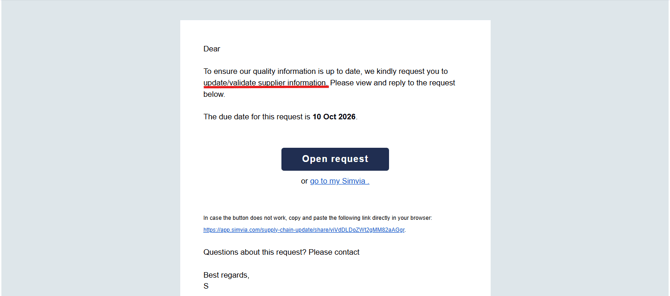
You'll get an email with the due date and an Open request button. If the button doesn't work, the email also includes a direct link you can copy and paste into your browser. If you already have a Simvia account, you can use go to my Simvia instead and find the request from there, no separate login step needed either way.
2. Check what's being asked for
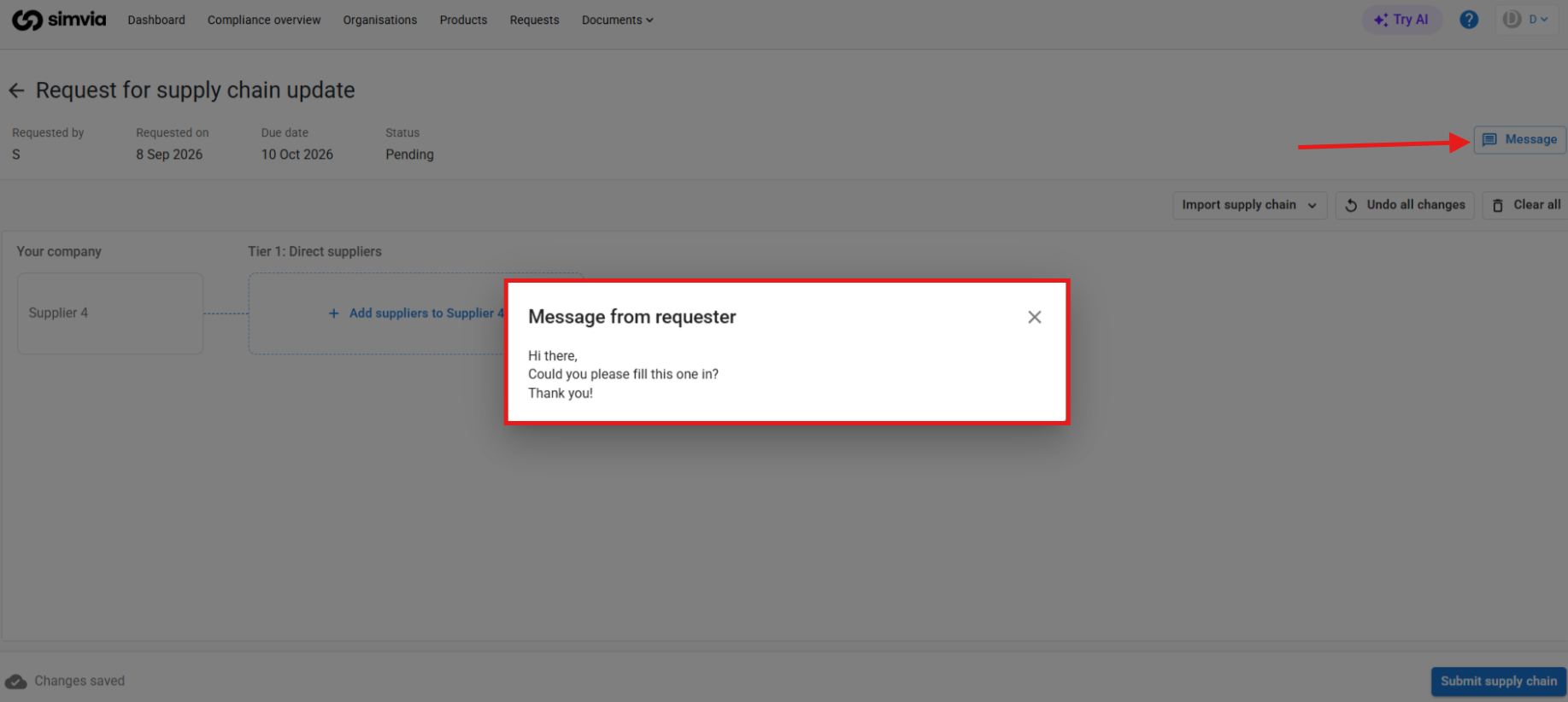
The request screen shows who requested it, when, the due date, and its status. If your customer added a note, it pops up automatically when you open the request. Read it carefully, it often includes instructions on how to structure your supply chain or which fields to fill in.
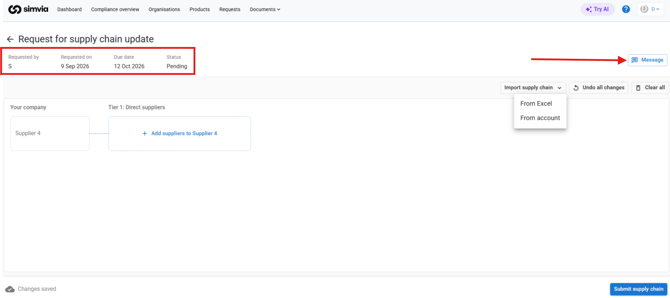
A request can cover a single product or several. If more than one product is included, make sure to go through every product tab, you'll need to build the supply chain for each product separately.
If your customer chose to include your current supply chain, you'll see it already filled in and only need to update what's changed. This is the most common case, and it saves you from starting over. If they sent a blank supply chain, you'll build it up from scratch instead.
3. Update your supply chain
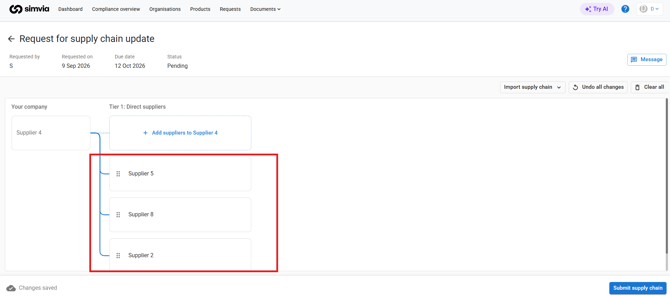
Your company sits on the left, with your suppliers laid out tier by tier to the right, starting with Tier 1: Direct suppliers. You can update this in two ways:
- Build it visually. Click Add suppliers to [company] to add a supplier at that tier, then repeat on a supplier's own card to add their sub-suppliers, one tier deeper each time. Drag a supplier by its grip icon to reorder it, or use the ⋮ menu on a supplier's card to Edit supplier details or Remove supplier. This works well when there are only a few changes to make.
- Import your supply chain. Use the Import supply chain dropdown, top right, then choose From Excel to upload a file, or From account to pull in the supply chain already recorded in your own Simvia account. This is faster when you have a lot of new suppliers to add or several to remove. Importing happens in two steps: first you set up the supply chain relations, who supplies to whom and for which product, then you fill in the details that belong to each supplier you've just imported.
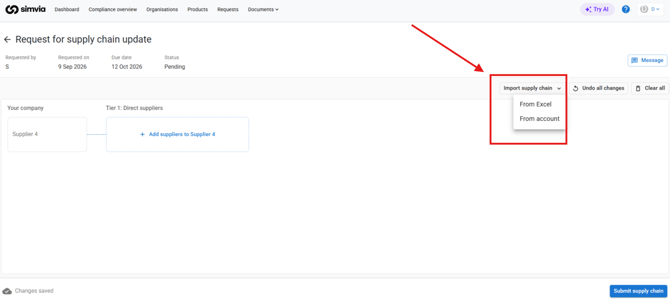
If you want to start over, Undo all changes reverts to the supply chain you started with, and Clear all empties it completely. Your progress is saved automatically as you go.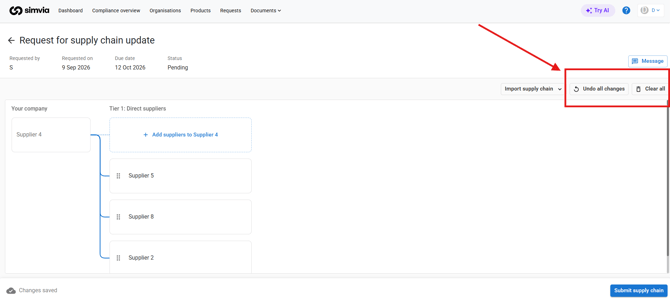
4. Submit your update
Once everything looks accurate, click Submit supply chain. Your customer takes it from there.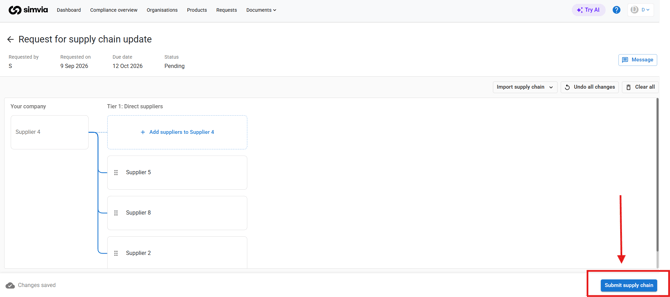
5. After you submit
Your customer will review the changes on their end, comparing what's new, removed, or unchanged before applying anything to their account. If they accept the update, you're done, no further action needed on your side. If something needs clarifying, they may cancel the request and follow up with you directly.
Related articles