
This article walks you through requesting packaging data from your suppliers in Simvia, from selecting what you need to sending the request.
Before you start Your packaging hierarchy needs to be set up first, so suppliers are correctly linked to their components. See How to Organise Your Packaging Hierarchy in Simvia if you haven't done this yet.
Selecting what to request data for
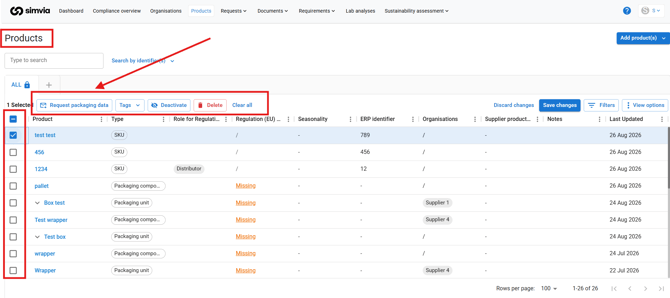
Go to Products and select the checkbox next to the SKU, packaging unit or component you need data for. You can select more than one item at once. Once something is selected, the toolbar shows a Request packaging data option.
Reviewing the request before sending
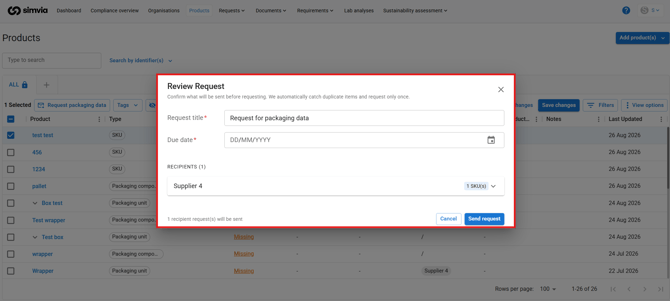
Clicking Request packaging data opens the Review Request window. Add a request title and a due date, both are required. Simvia also checks for duplicate items automatically, so each item is only requested once.
Simvia automatically groups recipients by supplier, so each supplier only sees the components they are responsible for. If a SKU has five components from four different suppliers, each supplier receives a separate, tailored request.
Understanding flagged issues
Before sending, Simvia flags any problems, such as "No supplier found for this item." Items without a supplier will not be included in the request. To fix this, assign a supplier to the component in your packaging hierarchy, then reopen the request.
Sending the request
Once you've reviewed the recipients and resolved any flagged issues, click Send request. Each supplier receives an email with a link to the supplier portal, the same portal they may already be familiar with from previous requests.
Recap
Select the product you need data for, add a request title and due date, review the recipients, resolve any flagged issues and click Send request. Suppliers are automatically grouped, so each one only sees what's relevant to them.
Related articles
Need more support? If you have questions about requesting packaging data, reach out to our support team at support@simvia.com.