
When your supplier's supply chain may have changed, you can request them to review and update it directly in Simvia. Here's how.
Before you start
Supply chain update requests are sent to your direct suppliers only. The supplier will be asked to confirm or update the organisations in their supply chain, including any sub-suppliers.
Steps
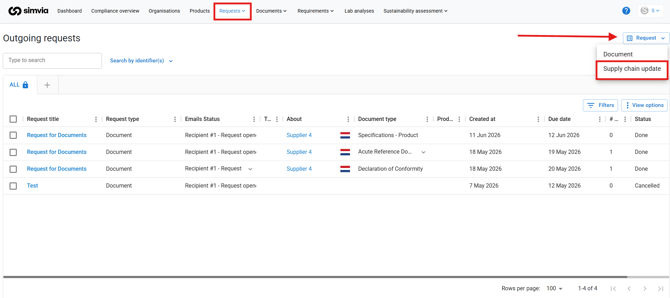
1. Open the request form
Go to Requests in the top navigation and select Supply chain update.
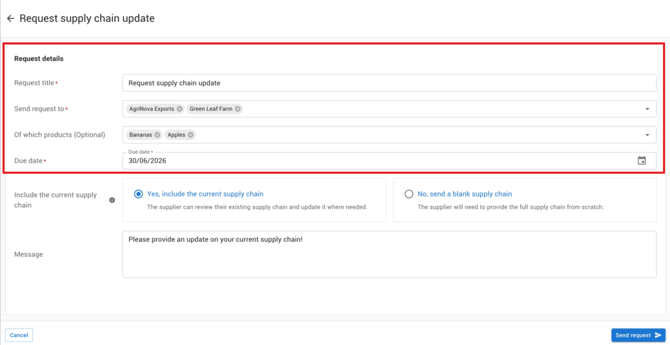
2. Fill in the request details
- Request title — give your request a clear name so you and your supplier can identify it easily.
- Send request to — select one or more direct suppliers. Each supplier will receive their own request.
- Of which products (optional) — specify which products this request relates to. This helps suppliers understand the scope and allows you to review updates per product.
- Due date — set a deadline for when the supplier should submit their update.
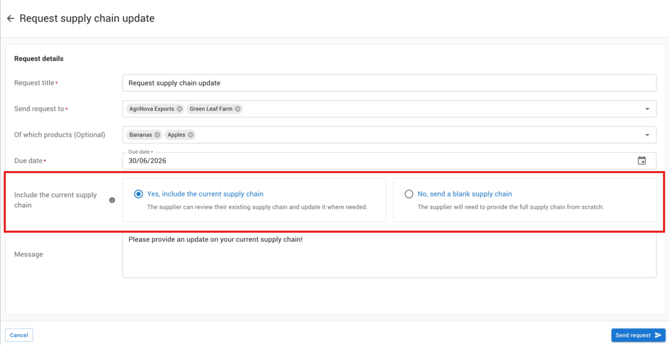
3. Choose whether to include the current supply chain
You have two options:
- Yes, include the current supply chain (recommended) — the supplier sees their current supply chain in your account and only needs to update what has changed. This saves significant time, especially for larger supply chains.
- No, send a blank supply chain — the supplier starts from scratch and builds their supply chain from the ground up. Use this when you want a completely fresh view, for example for a new supplier.
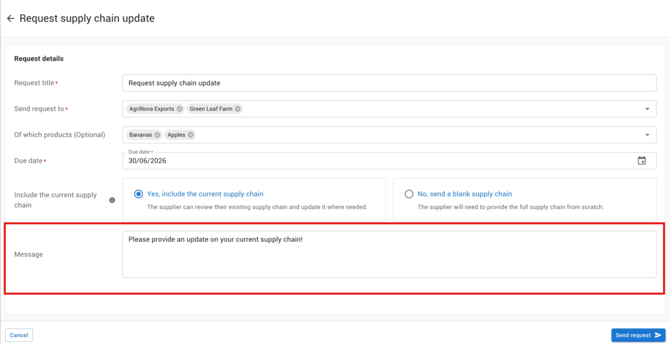
4. Add a message (optional)
Use the message field to give your supplier context — for example, which season the update relates to or what specifically you'd like them to check.
5. Send the request
Click Send request. Your supplier will receive a notification and can access the request directly in Simvia.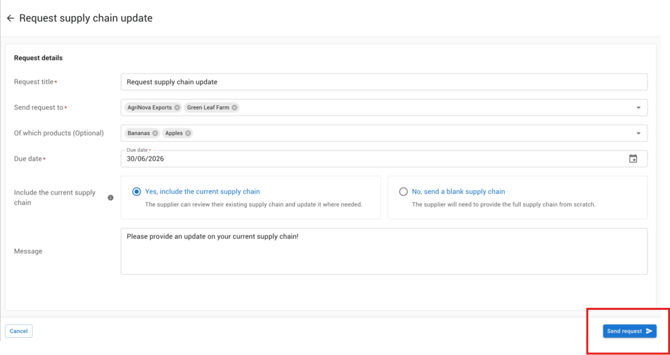
What happens next
Your supplier will review and update their supply chain, then submit it back to you. You'll be notified once their submission is ready to review.
→ See How to review and accept a supply chain update for the next step.
Tips
- You can send a request to multiple suppliers at once. Each supplier receives and manages their own request independently.
- If a supplier doesn't have a Simvia account, they can still respond via a direct link — no login required.
- Requests are separate from document requests, so your supplier's request inbox stays organised.